
Most tutorials assume you have a discrete GPU, but you can run Ollama on CPU only in Windows just as reliably. On-premises AI deployment now leads the enterprise market with a 59% share, driven largely by data privacy requirements, according to Precedence Research data reported by Hostinger… Ollama sits at the centre of that shift — the project recently raised a $65 million Series B and has grown to nearly 9 million users, with 176,000 GitHub stars reported by TechCrunch in July 2026.
Most tutorials assume you have a discrete GPU. Many developers do not. Whether you are working on a business laptop with integrated graphics, testing on a machine you do not want to dedicate VRAM on, or simply diagnosing why Ollama refuses to use the GPU you do have, running CPU-only is a real and common configuration — not a fallback to be embarrassed about.
This guide covers how to force Ollama into CPU-only mode on Windows, what actually determines its speed once you do, and how to fix the more common problem of Ollama landing on CPU by accident.
Key Takeaways
- Ollama automatically selects the fastest available backend, but falls back to CPU when no compatible GPU is detected, or can be forced there deliberately
- CPU-only inference speed is governed by memory bandwidth, not processor clock speed
- Real 2026 benchmark data shows roughly a 3–5x gap between GPU and CPU-only inference for the same model
- Small quantised models (3B parameters, Q4 quantisation) remain genuinely usable on CPU-only Windows systems
- Most “Ollama isn’t using my GPU” reports trace back to outdated drivers or a model that doesn’t fit in VRAM, not a real CPU-only requirement
Why Does Ollama Default to GPU Acceleration?
Ollama probes your system at startup and selects the best-matching backend from a set of compiled libraries covering NVIDIA CUDA, AMD ROCm, Vulkan, and CPU execution, as documented in Ollama’s environment variable reference. If it finds a supported GPU with enough free memory, it loads the model there by default, because GPU inference is substantially faster for almost every workload.
This automatic detection is convenient when it works. It becomes a problem when the GPU it finds does not actually have enough VRAM for your chosen model, or when driver issues prevent detection entirely — both of which we will cover in the troubleshooting section below.
What the “Processor” Column in ollama ps Actually Shows
Before changing any settings, check what Ollama is currently doing. Running ollama ps after loading a model displays a Processor column that reports exactly where the model sits, according to Ollama’s official FAQ documentation: 100% GPU means the model loaded entirely into graphics memory, 100% CPU means it loaded entirely into system RAM, and a split percentage (such as 48%/52%) means the model is partially offloaded across both. This single command tells you whether you are already running CPU-only, deliberately or not, before you touch a single configuration file.
How to Force Ollama to Run on CPU Only in Windows
Ollama exposes an environment variable specifically for this. Setting OLLAMA_NUM_GPU=0 before starting the server tells Ollama to keep every model layer on the CPU, overriding its automatic GPU selection entirely. The same variable, left at its default of 99, tells Ollama to offload as many layers as fit onto the GPU — so setting it to zero is a clean, documented way to disable GPU usage without uninstalling drivers or physically removing hardware.
On Windows, environment variables set through System Properties apply system-wide once you restart the Ollama service. Setting the variable in one terminal session and running the server in a different one is the most common configuration mistake, so it is worth confirming the setting actually took effect.
Verifying CPU-Only Mode Is Active
Two checks confirm the setting is live. Starting the server with OLLAMA_DEBUG=1 causes Ollama to log every environment variable and its resolved value at startup, which is the fastest way to confirm your override was picked up rather than ignored. Separately, opening Windows Task Manager and watching the Performance tab while a model generates a response should show 0% GPU utilisation and correspondingly high CPU usage — a useful visual confirmation covered in TechInFort’s guide to running local LLMs on constrained hardware.
What Determines CPU-Only Inference Speed?
The instinct is to assume a faster processor means faster inference. That is only partly true. Autoregressive text generation is memory-bandwidth-bound rather than compute-bound for most of the decode process — the bottleneck is how quickly weights can move from RAM into the CPU’s cache, not how many calculations the CPU can perform per second.
The maths behind this is concrete. A 7-billion-parameter model in INT4 format needs to read approximately 3.5GB of weight data per generated token. A system with 40GB/s of memory bandwidth is therefore capped at roughly 11 tokens per second regardless of how powerful the CPU otherwise is, according to figures verified against NVIDIA documentation, llama.cpp benchmarks, and MLPerf Inference results. This is why upgrading from a mid-range to a high-end CPU rarely delivers the speed gain people expect — the limiting factor sits in the memory subsystem, not the processor core.
Understanding this also explains why smaller models feel disproportionately faster: halving the parameter count roughly halves the data that needs to move per token, which is a far larger lever than clock speed. TechInFort’s comparison of GPU and CPU inference goes further into how this bandwidth gap plays out across different hardware tiers.
How Fast Is Ollama on CPU Only, Really?
Real benchmark numbers make the gap concrete rather than theoretical.
| Configuration | Model | Approximate speed |
|---|---|---|
| RTX 3060 (GPU) | Llama 3.1 8B | ~42 tokens/sec |
| CPU only | Llama 3.1 8B | 8–14 tokens/sec |
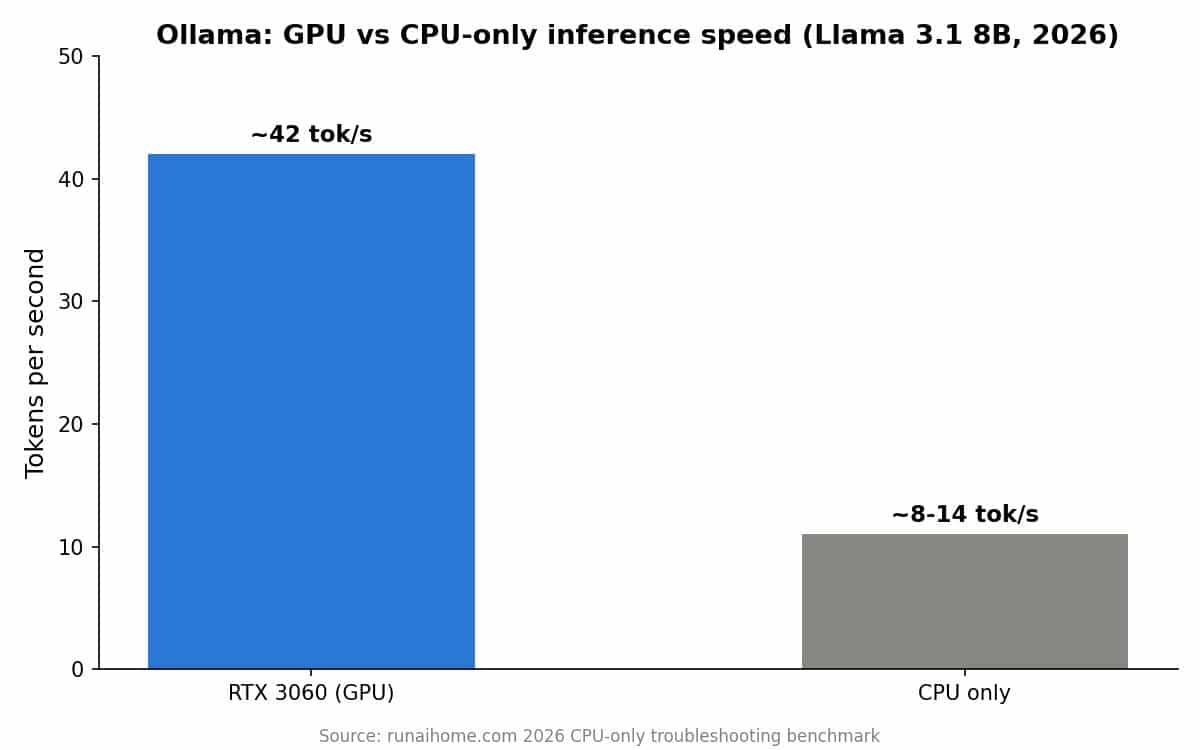
Figures from a 2026 CPU-only troubleshooting benchmark
That is roughly a three-to-five-times slowdown, not the order-of-magnitude collapse many assume. For short, single-user interactions — the majority of personal and small-business use cases — an 8–14 tokens/sec response is noticeably slower than a GPU but still usable for reading as it streams in.
What Is the Minimum RAM for CPU-Only Ollama on Windows?
RAM availability, not just bandwidth, sets a hard ceiling on which models will run at all before speed even becomes a question.
| RAM available | Recommended model | Approximate CPU-only speed |
|---|---|---|
| 4GB | Gemma 2B (Q4) | ~6 tokens/sec |
| 8GB | Phi-4 Mini or Llama 3.2 3B (Q4) | ~10–12 tokens/sec |
| 16GB+ | Llama 3.1 8B (Q4) | 8–14 tokens/sec |
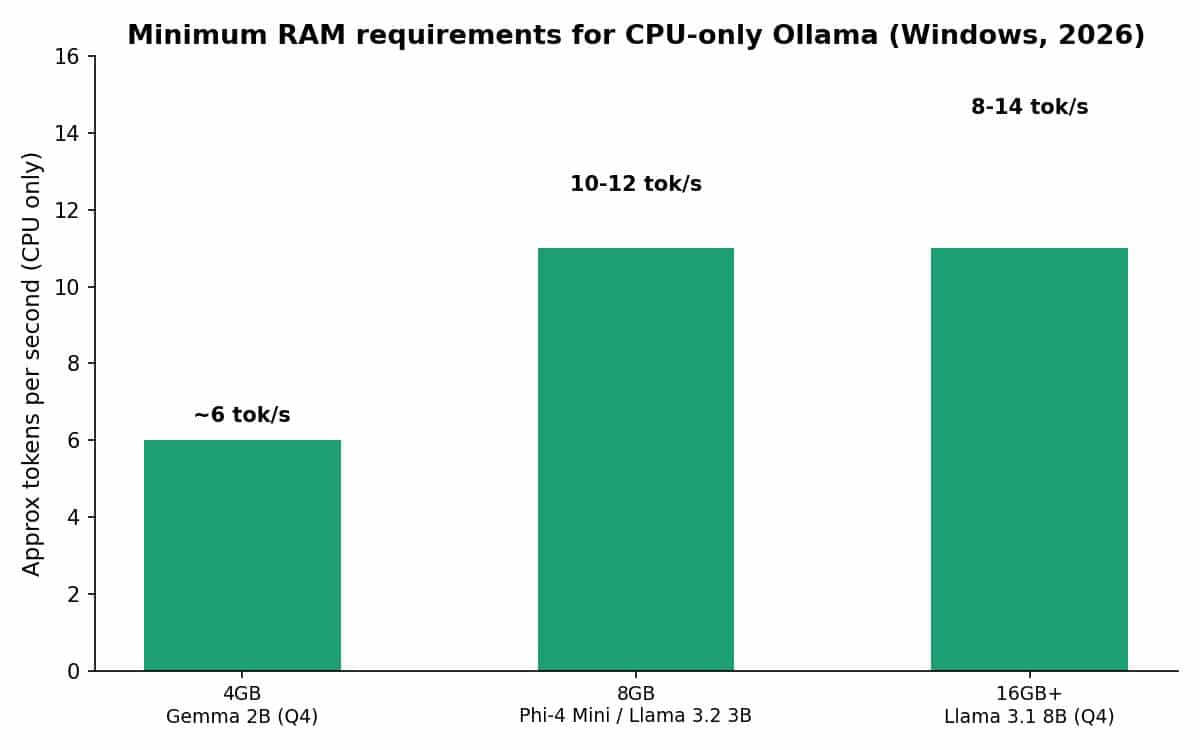
Add roughly 1–2GB of headroom on top of the model’s own footprint for the Windows OS and the Ollama runtime itself. For a deeper breakdown of model selection by available memory, TechInFort’s guide to the best local LLMs of 2026 maps hardware tiers to specific recommended models.
Troubleshooting: Why Is Ollama Not Using My GPU?
Not everyone reading this wants CPU-only mode deliberately. A large share of “Ollama is slow” complaints come from a GPU that silently isn’t being used. Diagnosing this takes priority over any manual configuration change.
Driver and Compute-Capability Issues
Outdated or missing drivers are the single most common cause of unintended CPU fallback. NVIDIA cards need driver version 550 or newer (570+ for older compute-capability 5.0–6.2 cards), while AMD cards need the ROCm v7 driver stack on both Windows and Linux, per hardware compatibility documentation. Unsupported cards fall back to CPU by design, not by malfunction — checking your exact card against Ollama’s published compatibility list before assuming something is broken saves considerable troubleshooting time.
When the Model Doesn’t Fit in VRAM
The second most common cause is not a detection failure at all: the GPU is working correctly, but the chosen model is larger than available VRAM, so Ollama splits it between GPU and system RAM. The ollama ps Processor column distinguishes these two situations immediately — 100% CPU points to a driver or detection problem, while a split percentage points to an oversized model for the available VRAM. Windows also reserves a portion of GPU memory for the Desktop Window Manager, which can push a borderline model over the edge on systems with less headroom than expected.
If the GPU genuinely is not the right fit for your workload, TechInFort’s comparison of NPU and GPU hardware for local AI covers the alternative acceleration paths available on modern Windows systems.
Which Models Actually Work Well on CPU Only?
Model choice matters more on CPU-only systems than on any other configuration, because the memory-bandwidth ceiling punishes larger models disproportionately. Small, modern, well-quantised models are consistently the better choice over older, larger ones that technically fit in RAM but generate at a crawl. Phi-4 Mini and Llama 3.2 3B at Q4 quantisation currently offer the strongest balance of response quality and CPU-only speed for everyday use, with Gemma 2B as the fallback option on 4GB systems.
Conclusion
Running Ollama entirely on CPU is a legitimate configuration, not a compromise to apologise for. The realistic expectation is a three-to-five-times slowdown against GPU inference, governed primarily by memory bandwidth rather than raw processor speed, and a firm requirement to match model size to available RAM. For most single-user, everyday workloads, a small quantised model on CPU-only Windows delivers a genuinely usable experience.
If you are working with limited hardware more broadly, TechInFort’s guide to running local LLMs on low-end hardware covers additional optimisation steps beyond CPU configuration alone, and the 2026 best local LLM guide breaks down model choice across every hardware tier.
Frequently Asked Questions
Is CPU-only Ollama fast enough for coding assistance?
For short completions and single-file questions, an 8–14 tokens/sec generation speed on a well-chosen model is workable, though noticeably slower than a GPU-backed setup. For sustained, large-context coding sessions, a GPU remains the better fit.
Does Ollama work without any GPU at all?
Yes. Ollama runs entirely on CPU automatically when no supported GPU is detected, and can also be forced into CPU-only mode on systems that do have a GPU by setting OLLAMA_NUM_GPU=0.
How much RAM do I need for CPU-only inference on Windows?
A minimum of 4GB supports small 2B-class models, 8GB comfortably supports 3–4B models, and 16GB or more is needed for 7–8B models, with 1–2GB of additional headroom recommended for Windows and the Ollama runtime itself.

Hammad Ahmed is a technology blogger and Computer Engineering student who writes about AI, software, hardware, cybersecurity, and emerging technologies. At TechInfort, he focuses on delivering clear, practical, and research-driven content that helps readers stay informed about the latest developments in the tech industry.