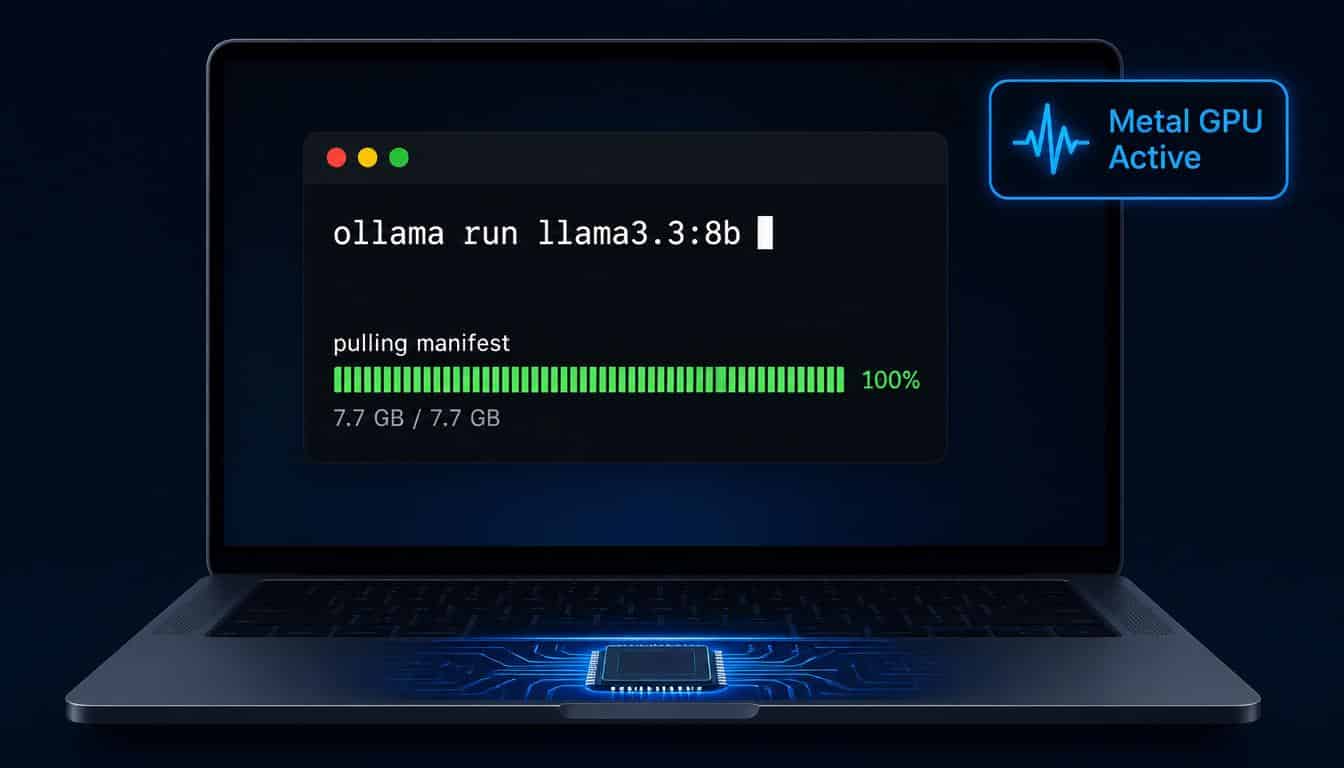
⚡ Quick Answer: Install Ollama on Mac with one command: brew install ollama. Then run ollama run llama3.3:8b to download and start your first model. Metal GPU activates automatically on all Apple Silicon Macs — no flags, no configuration. Verify GPU usage by running ollama ps in a second terminal window — the Processor column should read GPU, not CPU.
Apple Silicon Macs are the best consumer hardware for running local LLMs in 2026 — and most developers installing Ollama for the first time do not realise whether it is actually using the GPU or silently falling back to the CPU. The difference is not subtle. A 7B model generating 6 tokens per second is running on CPU. The same model at 35–55 tokens per second is running on the Metal GPU. Both installations look identical from the terminal prompt.
This guide covers every step from a clean Mac to a verified GPU-accelerated local model: two installation methods, how to confirm Metal acceleration is active, which models fit your RAM tier, memory optimisation settings that free 2–4GB instantly, developer API configuration, and the five most common Mac-specific problems with their fixes.
Key Takeaways
- Ollama installs in under two minutes on any Mac with Apple Silicon (M1 through M5)
- Metal GPU acceleration is automatic — no environment variables or flags required
- Always verify GPU is active with
ollama ps— silent CPU fallback is the most common performance issue - Apple Silicon unified memory means all system RAM is available as model memory — no separate VRAM pool
- An 8GB Mac runs 1.7B–8B models; a 16GB Mac runs up to 14B cleanly; 64GB+ handles 70B at full quality
OLLAMA_KV_CACHE_TYPE=q8_0frees 2–4GB of unified memory with negligible quality impact
Why Mac Is the Best Platform for Running Ollama Locally
Running Ollama on Mac differs from running it on a Windows or Linux PC in one architectural respect that changes everything: there is no separate VRAM pool.
On a PC with a discrete GPU, the GPU has its own dedicated memory — typically 8GB, 12GB, or 24GB. When a model exceeds that capacity, it overflows into system RAM across the PCIe bus. That transition causes performance to collapse from 50 tokens per second to 2–3 tokens per second — a difference that makes large models effectively unusable.
Apple Silicon Macs use unified memory. The CPU, GPU, and Neural Engine all share the same physical memory pool at the same bandwidth. An M4 MacBook Pro with 16GB of RAM has 16GB available for model weights — minus what macOS consumes at idle (typically 4–6GB). There is no PCIe bottleneck. The memory bandwidth available to the GPU is the full system memory bandwidth: up to 819 GB/s on the M5 Max.
This architecture is why a 16GB MacBook Air running a 7B model at Q4_K_M outperforms most PC setups with discrete 8GB GPUs on the same workload, despite the PC’s nominally higher GPU specifications.
Does Ollama Work on Intel Mac?
Ollama installs and runs on Intel Macs, but the experience is substantially worse than Apple Silicon. Intel Macs use CPU-only inference — there is no Metal GPU acceleration equivalent to Apple Silicon’s backend. Throughput on a 7B model typically lands at 3–8 tokens per second on Intel hardware, compared to 30–55 tokens per second on an equivalent-generation M-series Mac. If you have an Intel Mac, Ollama will function for experimentation, but it is not a practical daily inference environment for models above 3B parameters.
How to Install Ollama on Mac — Two Methods
Both methods produce identical installations. The method you choose depends on whether you prefer Homebrew or a standard macOS app installer.
Method 1 — Homebrew Install (Recommended for Developers)
Homebrew installation is the preferred route for developers because it integrates with shell PATH management automatically and makes future updates straightforward.
bash
# Install Homebrew first if not already installed
/bin/bash -c "$(curl -fsSL https://raw.githubusercontent.com/Homebrew/install/HEAD/install.sh)"

# Install Ollama
brew install ollama

# Verify installation
ollama --version
After installation, start the Ollama server:
bash
ollama serveOllama runs as a background process accessible at http://localhost:11434. On macOS, brew services start ollama configures it to launch automatically at login — useful if you want the server always available without manually running ollama serve.
Method 2 — Direct Download From ollama.com
Navigate to ollama.com/download, download the macOS installer, open the .dmg file, and drag Ollama to your Applications folder. Launch it from Applications — the first launch installs the command-line tool and starts the background server automatically. A small Ollama icon appears in the macOS menu bar confirming the server is running.
Both methods leave Ollama accessible from Terminal using the same commands. The direct download method is marginally simpler for users unfamiliar with Homebrew.
Pull and Run Your First Model
Once installed, pull a model and start a chat session with one command:
bash
ollama run llama3.3:8bThe first run downloads the model (approximately 4.7GB for Llama 3.3 8B at Q4_K_M). After download completes, a >>> prompt appears. Type a message and press Enter. Type /bye to exit the chat session.
How to Verify Metal GPU Is Active — The Step Most Developers Skip
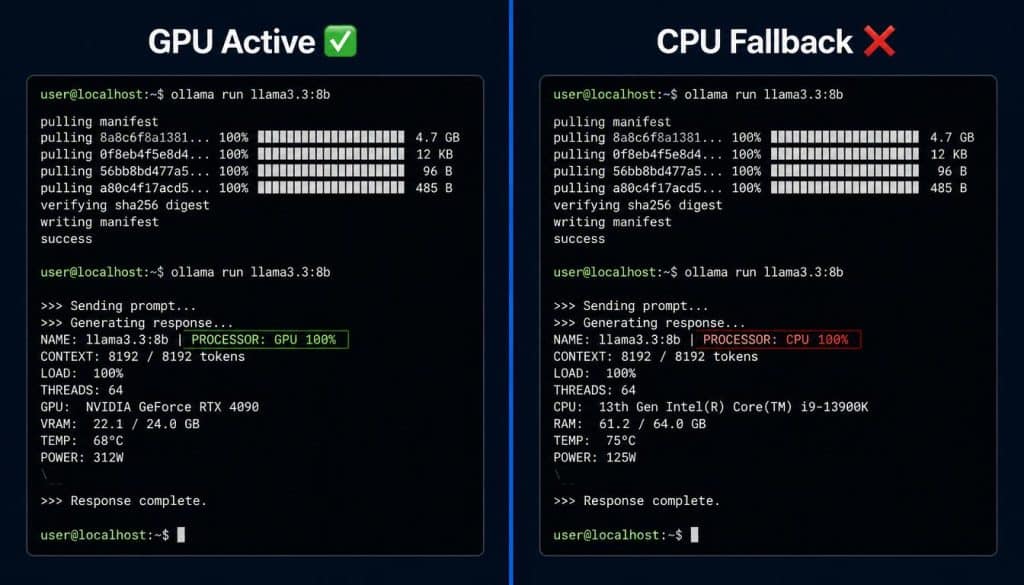
Ollama activates Metal GPU acceleration automatically on Apple Silicon. However, certain conditions cause it to fall back silently to CPU: an older macOS version, a corrupted driver state after system updates, or running a model that slightly exceeds available memory causing partial offloading.
The verification step takes ten seconds and is worth doing every time you install or update Ollama.
The ollama ps Command
Open a second Terminal window while a model is running and execute:
bash
ollama psThe output lists loaded models with three relevant columns: NAME, SIZE, and PROCESSOR. The PROCESSOR column reads either GPU or CPU. If it reads GPU 100%, Metal acceleration is fully active. If it reads CPU 100%, the model is running on the processor entirely — performance will be significantly lower than expected.
Activity Monitor GPU History
A visual confirmation is available through Activity Monitor. Open Activity Monitor, select Window from the menu bar, then GPU History. The Neural Engine appears separately from the GPU graph on Apple Silicon Macs. While a model is generating tokens, GPU utilisation typically spikes to 60–90%. If the GPU history shows no activity during inference, Ollama is using CPU.
What to Do If Ollama Is Running on CPU
Silent CPU fallback most commonly occurs on Intel Macs (expected, as Metal acceleration requires Apple Silicon) or when the model size exceeds available unified memory, causing macOS to begin swapping to SSD. The fix in the second case is switching to a smaller model or a lower quantisation level — both options are covered in the model recommendations section below. For a detailed comparison of how Metal GPU performance on Apple Silicon compares to discrete NPU and GPU hardware for local AI inference, the NPU vs GPU local AI hardware guide covers the architectural differences in depth.
Best Ollama Models for Your Mac’s RAM in 2026
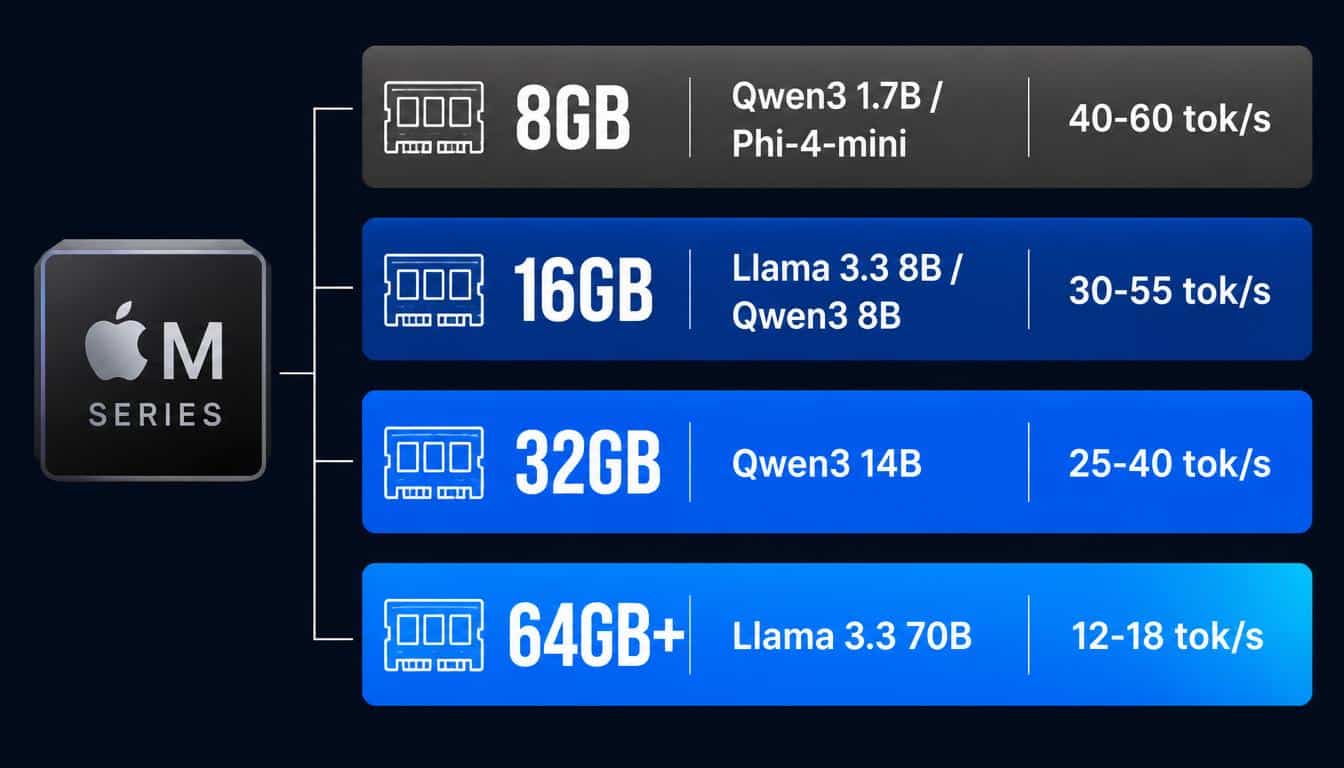
Model selection is more important on Mac than on PC because the unified memory pool is shared between the operating system, open applications, and the model. macOS at idle consumes 4–6GB of unified memory. The available headroom for model weights is your total RAM minus that baseline consumption.
Model Recommendations by RAM Tier (July 2026)
| RAM | Best Model | Command | Speed (tok/s) |
|---|---|---|---|
| 8GB | Qwen3 1.7B Q4_K_M | ollama run qwen3:1.7b | 40–60 |
| 8GB | Phi-4-mini | ollama run phi4-mini | 25–35 |
| 16GB | Llama 3.3 8B | ollama run llama3.3:8b | 30–50 |
| 16GB | Qwen3 8B | ollama run qwen3:8b | 35–55 |
| 32GB | Qwen3 14B | ollama run qwen3:14b | 25–40 |
| 48GB | Qwen3 30B | ollama run qwen3:30b | 15–25 |
| 64GB+ | Llama 3.3 70B | ollama run llama3.3:70b | 12–18 |
For coding assistance specifically, Qwen 2.5 Coder is the stronger choice at any RAM tier. Pull it with ollama run qwen2.5-coder:7b on 16GB machines or ollama run qwen2.5-coder:14b on 32GB. For a broader model comparison across use cases and hardware platforms, the best local LLM guide 2026 covers all major model families with benchmark data.
What Happens If the Model Is Too Large?
If a model exceeds available unified memory after macOS overhead, macOS begins swapping model weights to SSD. Inference speed drops from 30–55 tokens per second to 1–3 tokens per second — slower than reading text. Unlike the abrupt VRAM overflow on PC discrete GPUs, Mac degradation is gradual and quiet. Monitor it by watching token generation speed: if it starts fast and progressively slows, swapping is occurring. The fix is closing other applications or switching to a smaller model variant.
Memory Optimisation — Get More Performance From Your Mac
Three configuration changes meaningfully improve Ollama performance on Mac without any hardware changes.
OLLAMA_KV_CACHE_TYPE — Free 2–4GB Instantly
The KV cache stores conversation context during generation. At default FP16 precision, a 32K context window consumes 2–4GB of unified memory. Setting the cache type to q8_0 halves that consumption with negligible quality impact on most tasks.
Add this to your ~/.zshrc file (note: macOS uses .zshrc, not .bashrc):
bash
export OLLAMA_KV_CACHE_TYPE=q8_0After saving, run source ~/.zshrc to apply immediately without restarting Terminal. This single setting can determine whether a 14B model fits cleanly in 16GB of unified memory or overflows to SSD.
OLLAMA_NUM_PARALLEL — Handle Multiple Requests
If you are running Ollama as an API server for multiple applications or users, set the parallel request limit:
bash
export OLLAMA_NUM_PARALLEL=2The default is 1 — meaning requests queue rather than process simultaneously. Setting this to 2–4 is useful for developer workflows where multiple tools query Ollama simultaneously, such as running a coding assistant in VS Code alongside a separate chat session.
The .zshrc Gotcha — Why Your Environment Variables Do Nothing
A common point of confusion on Mac: environment variables set in .zshrc are only available in interactive Terminal sessions. If Ollama was started from the Applications menu or as a system service, it does not inherit Terminal environment variables at all. To apply settings globally, set them through the macOS launch agent or use Ollama’s configuration file. The most reliable method for most developers is to start Ollama from Terminal after sourcing .zshrc, rather than relying on the menu bar app.
Developer API — Connect Ollama to Your Applications
Ollama serves an OpenAI-compatible REST API at http://localhost:11434 automatically when running. Any application built for the OpenAI API can redirect to Ollama by changing one line of configuration.
Python Integration
python
from openai import OpenAI

client = OpenAI(
    base_url="http://localhost:11434/v1",
    api_key="ollama"  # required by the library, not validated
)

response = client.chat.completions.create(
    model="llama3.3:8b",
    messages=[{"role": "user", "content": "Explain unified memory architecture."}]
)

print(response.choices[0].message.content)
Quick API Test With curl
bash
curl http://localhost:11434/api/generate \
  -d '{
    "model": "llama3.3:8b",
    "prompt": "What is Apple Silicon?",
    "stream": false
  }'
For production use cases serving multiple concurrent users, a dedicated inference engine provides better throughput than Ollama’s sequential architecture. The vLLM vs Ollama comparison covers when the performance difference becomes significant and how to migrate with minimal code changes.
Add a Browser Interface With Open WebUI
Open WebUI provides a ChatGPT-style browser interface that connects to your running Ollama instance. Install it with pip and access it at localhost:8080:
bash
pip install open-webui
open-webui serve
Navigate to http://localhost:8080 in your browser. Open WebUI connects to Ollama automatically on port 11434, provides model selection from your local library, supports document upload for retrieval-augmented generation, and allows switching between multiple models in the same conversation. For a complete Open WebUI setup guide including Docker installation and advanced configuration, the LM Studio vs Ollama comparison covers the GUI options available for Mac users in detail.
Troubleshooting — Five Common Mac Problems
“Command Not Found” After Installation
The Ollama binary is not in your shell’s PATH. If you used Homebrew, restart Terminal — Homebrew adds the path automatically but requires a new session. If you installed via the .dmg, the binary is installed to /usr/local/bin/ollama — verify this exists with ls /usr/local/bin/ollama. If missing, re-run the installer.
Ollama Running on CPU Instead of GPU
Verified with ollama ps showing CPU rather than GPU. Three causes: Intel Mac hardware (no Metal GPU acceleration — expected), model too large for available unified memory after macOS overhead, or an older macOS version without full Metal backend support. macOS 14 (Sonoma) or later provides full Metal GPU acceleration. Update macOS if on an earlier version.
Model Downloads Then Crashes or Generates Slowly
The model is too large for available unified memory. Run ollama ps while the model is loaded — check the SIZE column and compare it to your available free RAM (visible in Activity Monitor → Memory). If the model size approaches or exceeds free RAM, macOS swaps to SSD. Fix: close other applications, reduce context window size with --ctx-size 2048, or switch to a smaller model or lower quantisation tag.
Environment Variables Set in .zshrc Have No Effect
Ollama started from the menu bar app or at login does not read .zshrc — it only reads system-level environment variables or launchd configuration. For environment variable changes to take effect, stop the menu bar app and start Ollama from Terminal directly: ollama serve. Your .zshrc settings then apply to that session.
Storage Filling Up — Model Management
Ollama stores all downloaded models in ~/.ollama/models/. Check total size with:
bash
du -sh ~/.ollama/models/List installed models with ollama list. Remove unused models with ollama rm model-name. Models range from approximately 1GB for 1.7B parameter models to 40GB+ for 70B variants. For machines with limited internal storage, set OLLAMA_MODELS in .zshrc to point to an external SSD — models load from external storage without performance impact if the drive has sufficient read bandwidth (Thunderbolt or USB4 recommended).
Frequently Asked Questions
Does Ollama work on Mac without an internet connection? Yes, after the initial model download. Ollama stores model files locally in ~/.ollama/models/. Once downloaded, models run entirely offline — no internet connection, no API keys, no usage logs sent externally. This is one of the primary reasons developers choose local inference over cloud APIs for sensitive codebases and private data.
What is the best Ollama model for an 8GB Mac? Phi-4-mini (3.8B) and Qwen3 1.7B are the strongest options for 8GB unified memory. Phi-4-mini offers better reasoning and coding performance at 25–35 tokens per second. Qwen3 1.7B is faster at 40–60 tokens per second with slightly lower quality. For general conversation and document tasks, either works well. Avoid pulling 7B+ models on an 8GB Mac — macOS overhead leaves insufficient headroom and SSD swapping degrades performance sharply.
How do I update Ollama on Mac? With Homebrew: brew upgrade ollama. With the direct download: download the latest .dmg from ollama.com and run the installer — it updates the existing installation. The menu bar app checks for updates automatically and displays a notification when a new version is available.
Can Ollama use the Apple Neural Engine? Ollama uses the Metal GPU backend on Apple Silicon, which provides access to the GPU cores in the M-series chip. The Neural Engine is a separate hardware block optimised for specific neural network patterns. For LLM inference, Metal GPU provides better throughput than the Neural Engine for most model architectures. Some MLX-based tools access the Neural Engine more directly, but for Ollama specifically, Metal GPU is the active accelerator.
Where does Ollama store models on Mac? All models are stored in ~/.ollama/models/ by default. This is in your home directory. Set OLLAMA_MODELS in your .zshrc to change the storage location: export OLLAMA_MODELS=/Volumes/ExternalDrive/ollama. Ollama reads this path on startup.
What to Do Next
Three directions depending on what you want to build:
Add a browser interface: Install Open WebUI (pip install open-webui && open-webui serve) for a ChatGPT-style interface to your local Ollama models. Access it at http://localhost:8080 with model switching, document upload, and conversation history.
Connect to your code editor: Install Continue.dev in VS Code or JetBrains. It connects to Ollama at localhost:11434 automatically and provides AI code completion, inline editing, and chat — all running locally on your Mac.
Scale to production: If you are building an application that serves multiple users, the vLLM vs Ollama comparison explains when Ollama’s sequential architecture becomes a bottleneck and how to evaluate whether vLLM’s continuous batching is worth the migration effort for your use case.
Conclusion
Installing Ollama on Mac is the fastest path to local LLM inference on any consumer hardware available in 2026. Metal GPU acceleration requires no configuration — it is active from the first model run. The verification step that most guides omit is ollama ps, which confirms whether the GPU or CPU is handling inference and prevents the most common performance problem: an apparently working installation that runs at a tenth of expected speed.
Match the model to available unified memory, set OLLAMA_KV_CACHE_TYPE=q8_0 to recover 2–4GB of overhead, and start the Ollama server from Terminal rather than the menu bar app if environment variable changes are not taking effect. Those three practices cover the majority of Mac-specific configuration issues.
For a broader view of where Ollama fits among local inference tools and when alternative engines like LM Studio or vLLM are more appropriate, the LM Studio vs Ollama comparison guide covers the full tool landscape for Mac developers.

Hammad Ahmed is a technology blogger and Computer Engineering student who writes about AI, software, hardware, cybersecurity, and emerging technologies. At TechInfort, he focuses on delivering clear, practical, and research-driven content that helps readers stay informed about the latest developments in the tech industry.