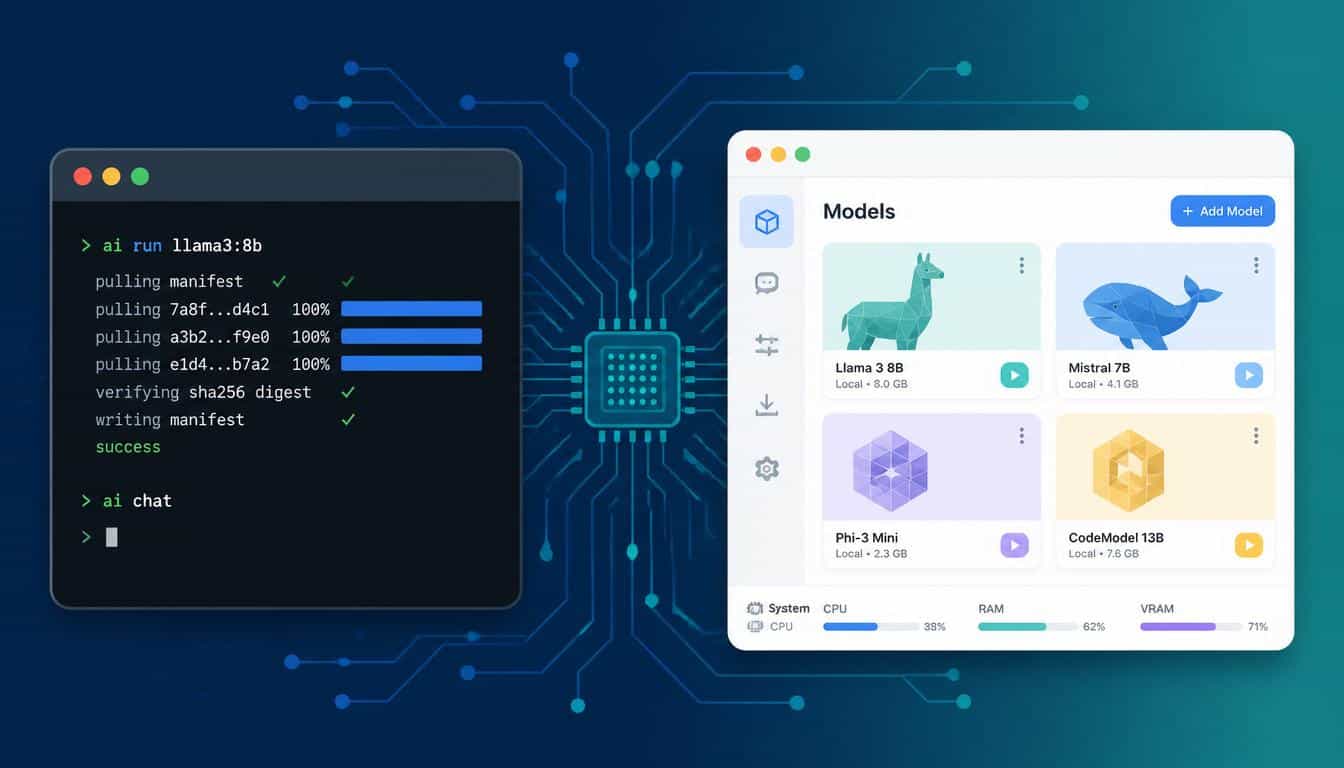
Ollama is faster (10–20%) and built for developers who need an API server, Docker support, and automation. LM Studio is better for beginners and model exploration with its visual GUI and HuggingFace browser. Both run simultaneously — Ollama on port 11434, LM Studio on port 1234. For Apple Silicon, LM Studio’s native MLX support can outperform Ollama by 15–30%.
Most developers setting up local LLM inference for the first time install either LM Studio or Ollama, spend an hour configuring it, and then wonder whether they chose correctly. Both tools are free, both run the same quantised models, and both produce identical output quality on the same hardware. The choice between them is not about intelligence or capability — it is about workflow.
LM Studio is a desktop application built for exploration. Ollama is a server process built for integration. Understanding that distinction before installing either tool saves significant setup time and prevents the common mistake of using a GUI-heavy desktop app when you need a production inference endpoint, or installing a command-line server when you want to visually compare models side by side.
This guide compares LM Studio vs Ollama directly across setup, performance, API compatibility, model management, and specific use cases — so you can match the tool to your actual workflow rather than guessing.
Choosing the right software is only part of the decision. You should also compare the Best Local LLM 2026 models to find the best option for your hardware and workflow.
Key Takeaways
- Both LM Studio and Ollama use llama.cpp under the hood — raw inference speed is architecturally identical on the same hardware
- Ollama delivers 10–20% faster practical throughput because it runs no GUI processes during inference
- LM Studio is built for exploration: visual model browser, parameter sliders, side-by-side comparison — ideal for beginners and researchers
- Ollama is built for integration: CLI commands, Docker support, REST API at localhost:11434, one-line model installation
- Both tools run simultaneously without conflict — Ollama on port 11434, LM Studio on port 1234
- For UK and EU developers handling sensitive data, Ollama’s audit trail capability addresses GDPR compliance requirements that LM Studio does not
What Is the Real Difference Between LM Studio and Ollama?
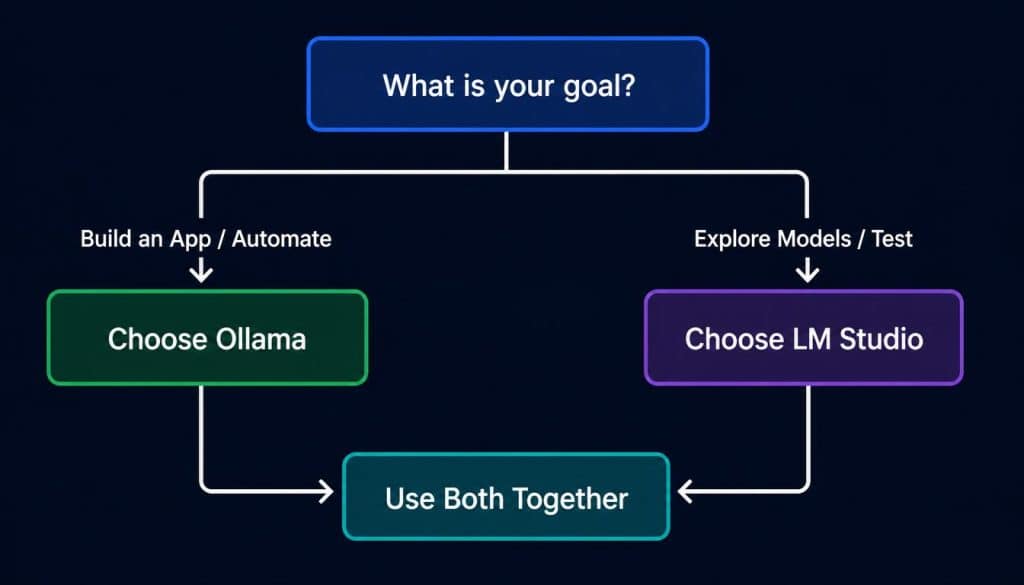
The surface-level comparison — both download GGUF models and serve them locally — obscures a fundamental architectural difference in what each tool is designed to do. Both Ollama and LM Studio use llama.cpp as their underlying inference engine, which means the raw computation happening underneath is identical. The differentiation is entirely in the interface, integration capability, and target workflow.
Ollama — CLI Server Built for Developer Workflows
Ollama installs as a background system service that exposes a local REST API on port 11434. There is no graphical interface — it operates entirely through the command line and HTTP requests. A model downloads and starts with a single command, and the running instance immediately accepts requests from any application that can send an HTTP POST request.
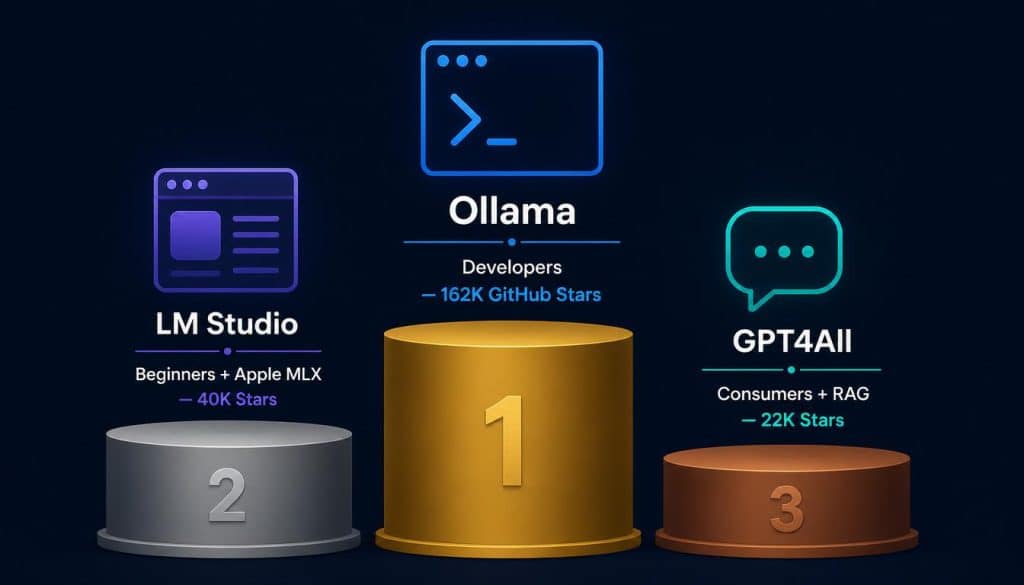
This architecture makes Ollama the natural choice for developers building applications that call a local model, automating inference tasks in scripts, running local LLMs inside Docker containers, or integrating inference into an existing development environment such as VS Code with Continue.dev or Cursor. With over 162,000 GitHub stars as of mid-2026, Ollama has become the de facto standard for developer-oriented local inference infrastructure.
If you decide to use Ollama after this comparison, follow our complete How to Install Ollama guide to get everything running in just a few minutes.
LM Studio — Desktop GUI Built for Exploration
LM Studio is a full desktop application available for Windows, macOS, and Linux. It includes a model discovery browser connected directly to HuggingFace, a chat interface with adjustable parameter sliders (temperature, top-p, context length), a side-by-side model comparison view, and a local server mode that mirrors the OpenAI API format.
The GUI overhead comes with a meaningful benefit: every parameter is visible and adjustable in real time without touching a configuration file or restarting a server process. For developers evaluating which model performs best on a specific task, or for non-technical users running local AI for the first time, that accessibility is a genuine advantage. LM Studio also serves an OpenAI-compatible endpoint on port 1234, which means any application built to call the OpenAI API can redirect to LM Studio’s local server by changing one URL.
What Both Tools Share — Same Models, Same Engine, Same Output Quality
Because both tools use llama.cpp and both support the GGUF model format, the quality of responses from a given model is identical regardless of which tool is serving it. Choosing LM Studio over Ollama does not change what the model produces — it changes how you interact with it and how other software connects to it. Both tools support the full range of quantisation levels (Q2_K through Q8_0), and both support multi-modal models including vision-capable variants.
LM Studio vs Ollama — Full Feature Comparison
| Feature | Ollama | LM Studio |
|---|---|---|
| Interface | CLI only | Full desktop GUI |
| Installation | Single command / installer | Desktop app installer |
| Model source | Ollama library + manual GGUF | HuggingFace browser + manual |
| API endpoint | localhost:11434 | localhost:1234 |
| API format | OpenAI-compatible | OpenAI-compatible |
| Docker support | Yes — official image | No |
| Runs as background service | Yes — always on | Manual start required |
| Parameter sliders | Config file only | Visual, real-time |
| Side-by-side comparison | No | Yes |
| Apple Silicon MLX | No (uses Metal via llama.cpp) | Yes — native MLX support |
| GPU auto-detection | Yes | Yes |
| Linux server deployment | Excellent | Limited |
| GDPR audit trail | Yes via systemd logs | No |
| Concurrent with other tool | Yes — port 11434 | Yes — port 1234 |
Setup and Installation — Which Is Faster to Get Running?
Ollama installs in under two minutes on all platforms. On Linux, a single curl command handles the entire installation and starts the service automatically:
bash
curl -fsSL https://ollama.com/install.sh | sh
ollama run llama3.1:8b
LM Studio requires downloading a larger installer, completing a standard GUI installation, launching the application, navigating to the model browser, searching for a model, and initiating a download. The process takes five to ten minutes for first-time setup, though the visual interface makes each step self-explanatory — no terminal experience required.
For developers comfortable with the command line, Ollama’s setup is faster. For users unfamiliar with terminal operations, LM Studio’s guided interface removes the friction entirely. For a complete walkthrough of running local models on constrained hardware using Ollama, the complete local LLM setup guide for low-end hardware covers the full configuration process.
Model Management — Ollama Library vs HuggingFace Browser
Ollama maintains its own curated model library at ollama.com/library with pre-configured model variants tagged by size and quantisation level. Pulling a model is one command:
bash
ollama pull qwen2.5-coder:14bThe library covers the most widely used models but is more selective than HuggingFace. Custom or obscure GGUF files require a Modelfile configuration — a brief text file that defines the model path and optional system prompt.
LM Studio connects directly to HuggingFace’s full catalogue through its built-in browser, offering access to every publicly available GGUF model without manual configuration. The visual interface shows file size, quantisation level, and compatibility indicators before downloading. For developers who primarily use mainstream models (Llama, Qwen, Mistral, Phi, Gemma), Ollama’s curated library is sufficient. For researchers working with specialised fine-tuned models from HuggingFace, LM Studio’s direct browser integration reduces friction considerably.
API and Integration — OpenAI-Compatible Endpoints Compared
Both tools expose OpenAI-compatible REST APIs, which means existing code written for the OpenAI Python SDK works locally by changing one line:
python
# Ollama
client = OpenAI(base_url="http://localhost:11434/v1", api_key="ollama")

# LM Studio
client = OpenAI(base_url="http://localhost:1234/v1", api_key="lm-studio")
The practical difference emerges in production scenarios. Ollama runs as a persistent background service and restarts automatically after system reboots — reliably available whenever an application calls it. LM Studio’s server mode requires the desktop application to be open and the server explicitly started, making it unsuitable for automated workflows or server deployments where no user session exists.
Performance — Does the GUI Add Meaningful Overhead?
In practice, Ollama achieves 10–20% faster practical token throughput compared to LM Studio running the same model on the same hardware. On a machine with 16GB RAM running Llama 3.1 8B at Q4_K_M, LM Studio achieves approximately 15–25 tokens per second on an Apple M2 MacBook, while Ollama reaches 18–30 tokens per second on equivalent hardware. The gap is consistent but not dramatic — both produce responses at interactive speeds on mid-range hardware.
For machines already near their performance ceiling — 8GB RAM or CPU-only setups — the 10–20% difference is meaningful. For machines with headroom to spare, the gap is imperceptible in daily use. The GPU vs CPU inference performance breakdown covers the hardware-level factors that influence this throughput difference in detail.
When Should You Choose Ollama Over LM Studio?
Building Applications and Automating Workflows
If the goal is to build a product, automate a task, or integrate local inference into an existing pipeline, Ollama is the correct tool. Its persistent API server accepts calls from Python scripts, Node.js applications, shell scripts, n8n automations, and any other system that can send HTTP requests — without requiring a desktop application to be open.
Developers building coding assistants, document processing pipelines, offline AI features in desktop applications, or customer-facing tools running on local hardware all benefit from Ollama’s always-on server architecture.
Running Local LLMs on Linux Servers or Docker
Ollama ships an official Docker image, making it straightforward to deploy local inference inside containerised environments:
bash
docker run -d -v ollama:/root/.ollama -p 11434:11434 ollama/ollamaLM Studio has no Docker support and requires a graphical session to operate. For any server deployment — cloud VM, home server, NAS device, or CI/CD pipeline — Ollama is the only viable option between the two.
GDPR and Audit Trail Requirements (UK/EU Developers)
For UK and EU developers working with regulated data, Ollama’s systemd service generates audit-compatible logs of all inference requests. This matters for organisations subject to the EU AI Act, which began applying to general-purpose AI systems in August 2026, and for UK GDPR obligations around data processing records. LM Studio does not generate equivalent audit trails in its current version.
When Does LM Studio Win Over Ollama?
Non-Technical Users and First-Time Local LLM Setup
The clearest advantage LM Studio holds is accessibility. A developer who has never used a terminal can download LM Studio, install it, find a model through the visual browser, and have a working local chatbot within fifteen minutes — no command memorisation, no configuration files, no API knowledge required.
For teams where some members are non-technical, or for personal use where the goal is a local AI assistant rather than an integration project, LM Studio removes every barrier that Ollama implicitly requires the user to clear.
Exploring and Comparing Models Before Committing
LM Studio’s side-by-side comparison mode allows running two different models simultaneously and sending the same prompt to both — immediately visible in parallel. For developers selecting a model for a specific task (choosing between Qwen 2.5 Coder 14B and DeepSeek-R1 7B for a coding assistant, for example), this visual comparison saves significant time compared to switching models in Ollama and mentally comparing outputs across separate sessions.
The parameter sliders — temperature, top-p, repeat penalty, context length — update inference behaviour in real time without restarting the model or editing configuration files.
Apple Silicon MLX Support — LM Studio’s Hidden Advantage
On Apple Silicon Macs (M1 through M4), LM Studio offers native MLX framework support, which accesses the Neural Engine and unified memory architecture through Apple’s dedicated ML framework rather than through llama.cpp’s Metal backend. MLX-accelerated inference in LM Studio can outperform Ollama’s Metal-based llama.cpp backend by 15–30% on certain model architectures on Apple Silicon hardware.
Ollama uses llama.cpp’s Metal acceleration, which is capable but does not expose the same level of Apple Silicon optimisation that native MLX provides. For developers primarily working on Apple Silicon Macs and prioritising maximum inference throughput, LM Studio’s MLX support is a genuine technical differentiator. For a deeper comparison of how hardware architecture affects inference tools across different platforms, the NPU vs GPU local AI hardware guide covers the architectural differences in detail.
Ollama vs LM Studio vs GPT4All 2026 — Three-Way Comparison
GPT4All occupies a similar space to LM Studio — a desktop application with a built-in model browser and chat interface — but targets a broader consumer audience with less focus on developer API integration.
| Feature | Ollama | LM Studio | GPT4All |
|---|---|---|---|
| Primary audience | Developers | Developers + beginners | General consumers |
| GUI | None | Full desktop | Full desktop |
| API server | Always on | Manual start | Limited |
| Docker support | Yes | No | No |
| Model library | Curated | HuggingFace full | Curated |
| Local document RAG | No | Yes (LocalDocs) | Yes (LocalDocs) |
| Apple MLX | No | Yes | No |
| GitHub stars 2026 | 162K+ | 40K+ | 22K+ |
| Speed vs baseline | Fastest | Mid | Slowest |
GPT4All’s built-in LocalDocs feature — which creates a local retrieval-augmented generation pipeline from personal documents without configuration — is one area where it outperforms both alternatives for non-technical users. For developers, Ollama remains the stronger option. For document-focused workflows without technical setup requirements, GPT4All’s LocalDocs is a practical choice before implementing a full LangChain or LlamaIndex pipeline.
Ollama vs llama.cpp — When to Skip Both
Developers who need maximum CPU performance or granular control over inference parameters have a third option: running llama.cpp directly, bypassing both Ollama and LM Studio entirely.
llama.cpp exposes layer-by-layer GPU offloading, explicit thread count control, KV cache configuration, and batch size tuning that both tools abstract away. Direct llama.cpp access provides approximately 10% additional throughput over Ollama and eliminates dependency on either tool’s update cycle:
bash
./llama-cli -m ./models/llama3.1-8b-q4_K_M.gguf \
  --ctx-size 2048 \
  --threads 6 \
  -p "Your prompt here"
For production automation, Ollama’s REST API is far simpler to integrate. For maximum performance experimentation on constrained hardware, llama.cpp direct is worth the additional configuration effort. For a broader view of which local LLM tools and models perform best across different hardware configurations, the best local LLM models and hardware guide covers every consumer hardware tier available in 2026.
Frequently Asked Questions
-
Is LM Studio or Ollama faster for local LLM inference?
Ollama is 10–20% faster in practical use because it runs no GUI processes during inference. Both use llama.cpp under the hood, so raw compute throughput is identical — the difference comes from LM Studio’s desktop interface competing for CPU and memory resources during generation. On Apple Silicon Macs specifically, LM Studio’s native MLX support can reverse this advantage, outperforming Ollama by 15–30% on certain model architectures.
-
Can I run LM Studio and Ollama at the same time?
Yes. Ollama runs on port 11434 and LM Studio runs on port 1234 — there is no conflict. Running both simultaneously is a recommended workflow for developers: use LM Studio to explore and compare models visually, and use Ollama as the persistent API server for applications and automations. Most experienced local LLM developers use both tools for different parts of their workflow rather than choosing one exclusively.
-
Does Ollama work on Windows?
Yes. Ollama has a native Windows installer and runs as a Windows service. GPU acceleration is supported on NVIDIA GPUs via CUDA and on AMD GPUs via ROCm. Integrated graphics acceleration works on systems with compatible drivers. The full feature set — including Docker support when running under WSL2 — is available on Windows.
-
What is the best Ollama alternative in 2026?
For GUI-based exploration: LM Studio. For document RAG without technical setup: GPT4All. For maximum performance on CPU: llama.cpp directly. For web-based interfaces: Open WebUI, which provides a browser-based chat interface that connects to a running Ollama backend. The choice depends on whether the priority is developer integration, visual exploration, or consumer accessibility.
-
Is LM Studio or Jan.ai better for beginners?
Both are desktop applications targeting similar audiences. LM Studio has a more polished model browser and better side-by-side comparison tooling. Jan.ai emphasises a cleaner chat interface with built-in extension support. For developers transitioning from cloud AI to local inference, LM Studio’s HuggingFace integration and parameter controls provide more useful depth. For users who want a simple local chatbot with minimal configuration, Jan.ai’s interface is marginally simpler.
Conclusion
LM Studio and Ollama solve different problems despite appearing to do the same thing. LM Studio is the right choice when the goal is exploration — finding the best model for a task, adjusting parameters visually, or setting up local AI for the first time without terminal experience. Ollama is the right choice when the goal is integration — building applications, automating workflows, deploying on servers, or maintaining a persistent inference endpoint that other software calls reliably.
For most developers, the practical answer is both: LM Studio for model evaluation and Ollama for production serving. They run on different ports, use the same model files, and complement each other cleanly in a local AI development workflow.
For a complete overview of the best models to run through either tool, the best local LLM models and hardware guide covers performance benchmarks across every consumer hardware tier. For developers working on machines without dedicated GPUs, the best local edge AI models for developers guide covers model selection specifically for constrained inference environments.

Hammad Ahmed is a technology blogger and Computer Engineering student who writes about AI, software, hardware, cybersecurity, and emerging technologies. At TechInfort, he focuses on delivering clear, practical, and research-driven content that helps readers stay informed about the latest developments in the tech industry.