
You can run a local LLM on low-end hardware with exactly 8GB of RAM and no dedicated GPU by utilizing GGUF 4-bit quantization and the Ollama inference engine. Applying a Q4_K_M quantization profile aggressively shrinks a highly capable 7B parameter model from 14GB down to just 4.1GB, enabling it to execute entirely on standard system RAM. Deploying open-weight models like Llama 3.1 8B locally on an ordinary laptop guarantees absolute data privacy and permanently eliminates all cloud API subscription costs.
The hardware landscape for local artificial intelligence inference shifted dramatically throughout 2026. Developers and tech enthusiasts no longer require an expensive, dedicated graphics card to execute highly capable large language models. An ordinary laptop equipped with merely 8GB of system RAM is fully capable of running advanced 7B parameter open-weight models offline.
Key Takeaways
- Ollama plus a GGUF-format quantised model is all you need — no complex configuration required
- 8GB RAM supports 3B–7B parameter models at Q4_K_M quantisation comfortably
- CPU-only inference runs at 5–25 tokens per second depending on the model and CPU — usable for daily tasks
- Model selection has more impact on performance than any hardware tweak on constrained systems
- Reducing the context window size is the single most effective performance lever on low-end machines
What Hardware Can Actually Run a Local LLM in 2026?
Without a dedicated Graphics Processing Unit (GPU), the system relies entirely on standard DDR4 or DDR5 RAM to load the neural network weights. High-speed system memory ensures the CPU receives data fast enough to prevent severe processing bottlenecks. System memory bandwidth dictates the absolute ceiling for token generation speeds during CPU-only inference.
Allocating processing resources to an integrated GPU (iGPU) provides a massive, measurable speed boost over pure CPU execution. Modern inference engines seamlessly delegate specific neural network computation layers directly to the iGPU. This explicitly offloads complex tensor matrix multiplications away from the primary CPU, dramatically increasing overall generation speeds.
What Is GGUF Quantisation and Why Is It Mandatory?
GGUF quantization is the absolute mandatory mathematical compression technique required for low-end hardware deployment. It systematically converts high-precision 32-bit floating-point neural network weights down to significantly smaller 4-bit integers. This aggressive algorithmic compression drastically shrinks the total memory footprint of the artificial intelligence model.
For instance, an uncompressed 7B parameter model requires over 14GB of RAM at full precision. Applying a Q4_K_M quantization profile crushes that exact same model down to just 4.1GB, making it easily accessible for standard 8GB laptops. The real-world quality degradation associated with 4-bit quantization is remarkably minimal, retaining roughly 96% of its original logical intelligence.
| Quantisation Level | 7B Model Size | Minimum RAM Required | Quality Retention |
| Uncompressed (FP16) | 14 GB | 16 GB | 100% |
| Q8_0 (8-bit) | 7.1 GB | 12 GB | 99% |
| Q4_K_M (4-bit) | 4.1 GB | 8 GB | 96% |
| Q2_K (2-bit) | 2.6 GB | 4 GB | Severe Degradation |
Which Models Run Best on 8GB RAM? (2026 Benchmarks)
Meta’s Llama 3.1 8B remains the undisputed default recommendation for machines restricted strictly to 8GB of RAM. It provides exceptional logical reasoning capabilities and a massive context window while fitting perfectly within a 4.9GB compressed file size.
For specialized offline coding tasks, Qwen 2.5 7B delivers the absolute best algorithmic performance in the 7B tier. It consistently outperforms larger western models in complex Python and JavaScript generation tasks. If the hardware is severely restricted to 4GB of RAM, the tiny Phi-3 Mini 3.8B model serves as the only viable option.
| Recommended Model | Parameters | RAM Usage (Q4) | Best For Workload |
| Llama 3.1 8B | 8 Billion | 4.9 GB | General Assistant, Drafting |
| Qwen 2.5 7B | 7 Billion | 4.7 GB | Code Generation |
| Mistral 7B | 7 Billion | 4.1 GB | Fast CPU Inference |
| Phi-3 Mini | 3.8 Billion | 2.3 GB | 4GB RAM Machines |
Step-by-Step: How to Run a Local LLM With Ollama
Ollama operates as the absolute fastest and most reliable command-line tool for local model deployment on Windows, macOS, and Linux. It natively detects system hardware architecture and automatically manages complex hardware acceleration parameters.
To install on Windows, developers must download the executable directly from the official Ollama website. Once installed, opening the command prompt and executing the command ollama run llama3.1:8b instantly downloads and boots the model locally.
macOS users experience identical functionality. Apple Silicon machines leverage advanced unified memory architecture, allowing the CPU and GPU to share the exact same RAM pool for maximum inference efficiency.
Once Ollama is installed, the next step is choosing the right AI model. Explore our guide to the Best Local LLM 2026 to compare the top models for coding, writing, research, and everyday productivity.
How to Squeeze More Performance From Limited Hardware
Large context windows exponentially increase the amount of system memory required during live inference. Developers must manually restrict the context window to exactly 2048 or 4096 tokens to prevent the system from crashing on 8GB machines.
Users must also ensure that advanced vector extensions like AVX2 or AVX-512 are actively enabled on their supported CPUs. Furthermore, closing all background applications—especially heavily cached web browsers—is completely mandatory to free up system memory prior to launching the inference engine.
What Hardware Can Actually Run a Local LLM in 2026?
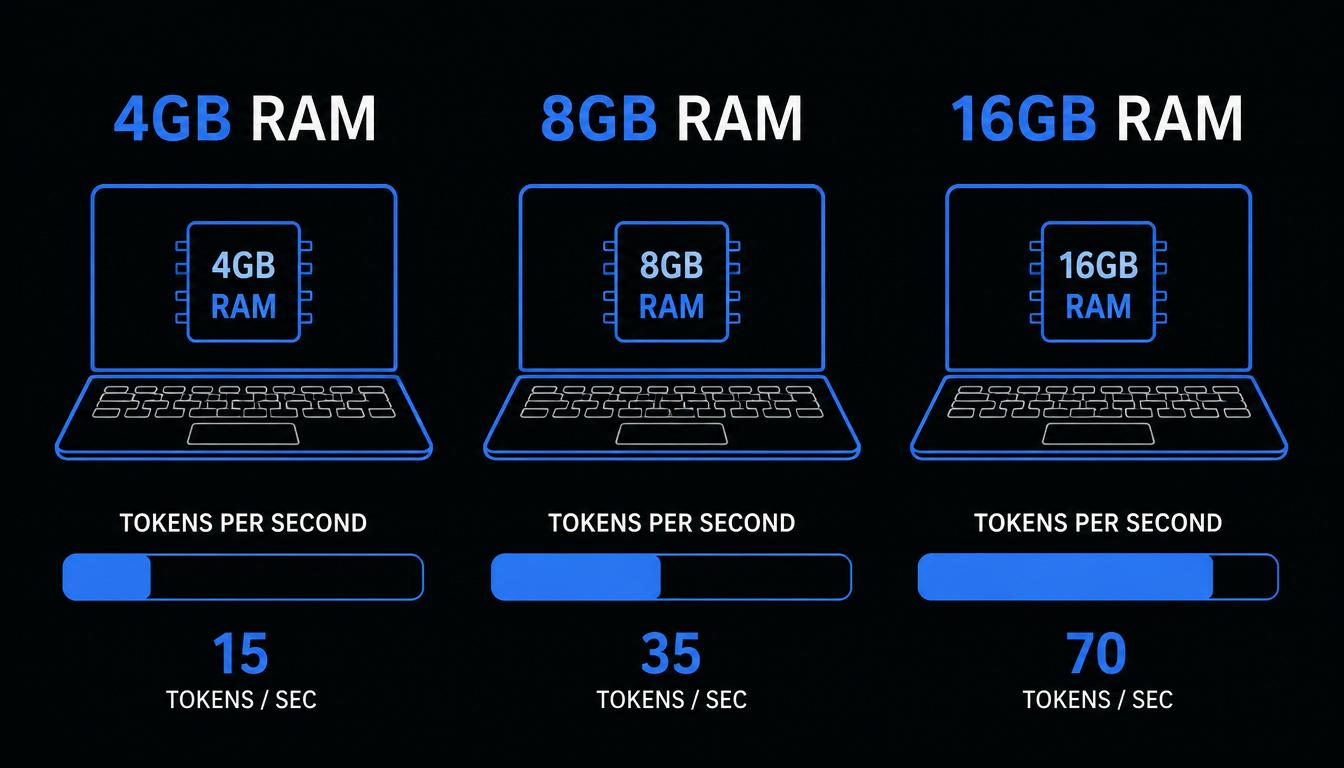
The persistent assumption that local LLM inference requires 24GB or more of VRAM is outdated. Quantisation techniques and optimised inference runtimes have fundamentally changed what consumer hardware can do.
If you want to use any local LLM on your computer, the first step is installing Ollama. Follow this complete How to Install Ollama guide to set up and run AI models in just a few minutes.
The Minimum Viable Setup — What 8GB RAM Gets You
With 8GB of system RAM and no discrete GPU, you can run quantised models in the 3B–7B parameter range. In practice, this means models like Phi-4-mini (3.8B) or Qwen3 1.7B running at 15–25 tokens per second on a modern i5 or Ryzen 5 processor — fast enough for coding assistance, document summarisation, and general question-answering.
The important constraint to understand is that 8GB is a ceiling, not a floor. Your operating system claims a portion of that before you open a single application. On Windows, background processes typically consume 2–3GB at idle, leaving 5–6GB for the model. This is why model size selection matters enormously at this hardware tier.
There is one exception worth noting: Apple Silicon Macs with 8GB of unified memory behave differently from x86 machines with the same spec. Because the CPU and GPU share that memory pool, Ollama can use Metal acceleration automatically, delivering noticeably faster inference than a comparable Intel or AMD laptop. If you already own an M-series Mac, your 8GB stretches further than the raw number suggests.
If you’re deciding between different local AI tools, our detailed LM Studio vs Ollama comparison explains the key differences in setup, performance, features, and ease of use.
Why Memory Bandwidth Matters More Than Clock Speed
When a model runs on CPU, the processor must continuously stream model weights from RAM. The speed at which data moves between RAM and CPU — memory bandwidth — becomes the primary bottleneck, not CPU clock frequency. A processor running at 3.5GHz with dual-channel DDR4 will outperform a faster processor on a single-channel memory configuration when running LLM inference.
If your machine has two available RAM slots and only one is populated, installing a matched second stick can meaningfully improve inference throughput — sometimes by 30–40% — for essentially no cost if you have spare compatible RAM.
CPU vs iGPU — Should You Use Your Integrated Graphics?
If your processor includes integrated graphics — Intel Iris Xe, AMD Radeon integrated, or Apple’s GPU cores — Ollama can offload model layers to that hardware automatically. Even a weak integrated GPU beats pure CPU inference.
Benchmarks from June 2026 show an 8GB machine with Intel Iris iGPU reaching 12–20 tokens per second, compared to 5–10 tokens per second on the same machine running CPU-only. The difference is meaningful for daily use. Ollama handles this offloading automatically when it detects compatible integrated graphics, so no manual configuration is required in most cases. For a detailed comparison of NPU and GPU hardware behaviour in local AI inference, the dedicated NPU vs GPU for AI inference guide covers the architectural differences in depth.
What Is GGUF Quantisation and Why Does It Make Low-End Hardware Viable?
Quantisation is the technology that makes low-end local inference possible. Understanding it briefly is worth the two minutes it takes, because it directly determines which models you can run and at what quality.
How 4-Bit Quantisation Shrinks a 7B Model to Under 5GB
A large language model stores its parameters as numerical values. At full precision (FP16), a 7B parameter model weighs approximately 14GB — far beyond what an 8GB machine can hold. Quantisation compresses those values to lower precision. At 4-bit quantisation, that same 7B model fits in approximately 4.1–4.4GB, with room left for the KV cache the model needs during inference.
GGUF is the file format used by llama.cpp, Ollama, and LM Studio. It uses a tiered system called K-quants, which applies different precision levels to different layers based on their importance to output quality. Attention layers — which have the greatest influence on reasoning — receive higher precision, while feed-forward layers can tolerate more compression. This smart allocation is why GGUF achieves better output quality per gigabyte than earlier naive quantisation approaches.
Research on CPU inference published on arxiv demonstrates the scale of the compression benefit: a 4-bit Q4_K_M GGUF model delivers an 18× speedup over full-precision FP16 on CPU hardware, while reducing RAM consumption by over 90%.
Q4_K_M vs Q3_K_M vs Q2_K — Which Level to Use at 8GB?
The naming convention tells you the compression level. Q4 means 4 bits per weight on average, Q3 means 3 bits, Q2 means 2 bits. The K_M suffix indicates a mixed-precision K-quant variant, which applies higher precision to the most critical layers.
For 8GB hardware, Q4_K_M is the standard recommendation in almost every case. It fits a 7B model in approximately 4.1GB with 92–95% quality retention relative to the full-precision version. Q3_K_M drops to around 3.3GB but loses more quality. Q2_K is useful only on 4GB machines where no other option fits, as the quality degradation becomes noticeable on reasoning tasks.
| Quantisation Level | 7B Model Size | RAM Required | Quality Retention |
|---|---|---|---|
| Q2_K | ~2.7GB | ~4GB | ~85% |
| Q3_K_M | ~3.3GB | ~5GB | ~90% |
| Q4_K_M | ~4.1GB | ~6GB | ~92–95% |
| Q5_K_M | ~4.7GB | ~7GB | ~98% |
| Q8_0 | ~7.7GB | ~9GB | ~99.5% |
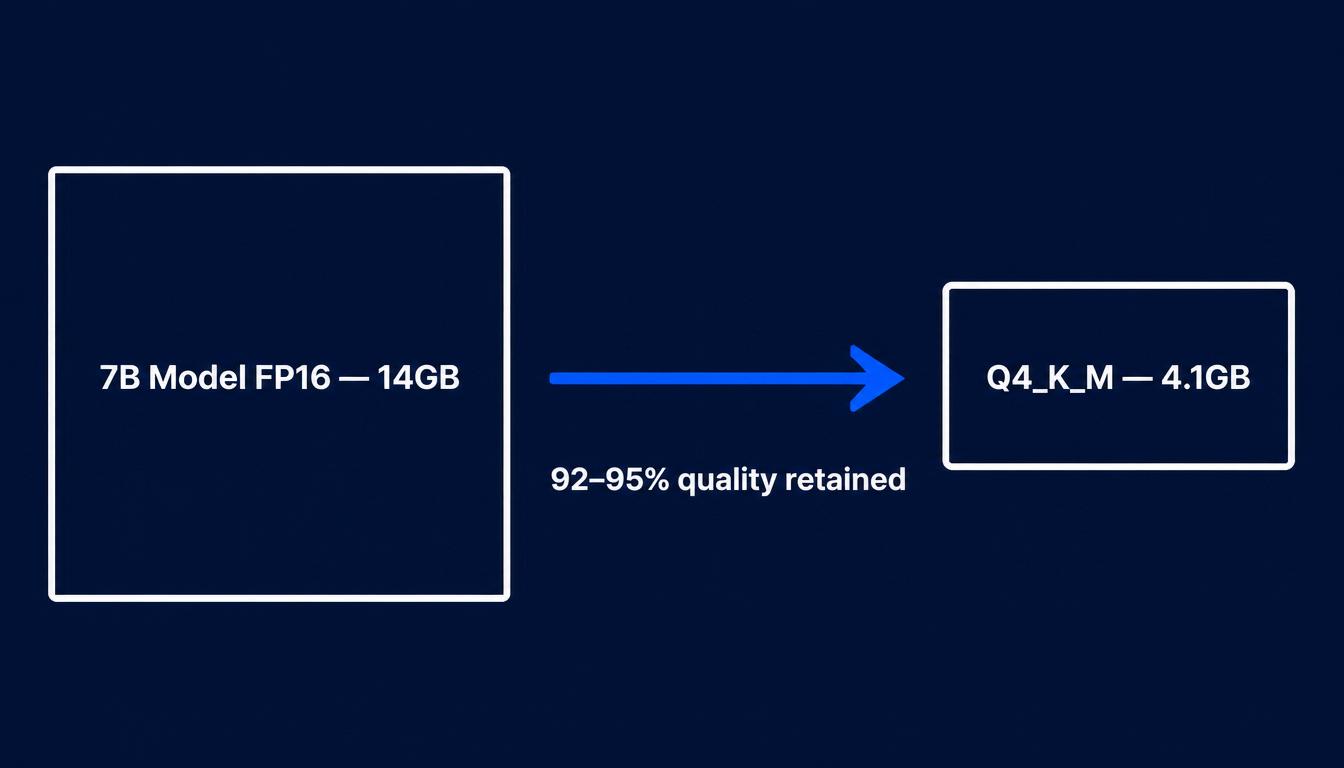
On 8GB hardware, Q4_K_M is the correct choice for most models. Q5_K_M is usable for 3B models where the smaller file size leaves enough headroom.
What Quality Do You Actually Lose With 4-Bit Models?
For typical daily tasks — coding assistance, summarisation, drafting, question-answering — the quality difference between Q4_K_M and full-precision is imperceptible in practice. The 5–8% quality gap that benchmark numbers suggest does not translate into obviously worse responses on conversational tasks.
The gap becomes more relevant on precision-sensitive workloads: complex multi-step mathematical reasoning, structured data extraction, or code generation for large multi-file projects. For those use cases, a smaller 3B model at Q5_K_M often performs better than a 7B model at Q2_K — the quality compression at lower bit depths affects reasoning consistency more than raw output fluency.
Step-by-Step: How to Run a Local LLM on Low-End Hardware With Ollama
Ollama is the simplest path to running local models on low-end hardware. It wraps the llama.cpp inference engine behind a single command-line interface, handles model downloading and quantisation tag management automatically, and falls back gracefully to CPU inference when no GPU is detected.
After choosing a model, the next step is learning how to run it efficiently on your PC. Check out our complete guide on How to Run a Local LLM for step-by-step instructions
Windows Installation (No Admin Rights Required)
- Go to ollama.com/download and download
OllamaSetup.exe - Run the installer — it does not require administrator privileges
- Open a new PowerShell or Command Prompt window
- Run:
ollama run phi4-minito download and start a model suited to 8GB hardware - Ollama starts as a background service automatically
To verify GPU detection (including integrated graphics), run ollama ps after loading a model. The Processor column shows GPU if hardware acceleration is active, CPU if inference is running entirely on the processor. If it shows CPU when you expected GPU acceleration, update your NVIDIA drivers or check that your integrated graphics drivers are current.
macOS Setup (Apple Silicon vs Intel — Different Results)
On Apple Silicon Macs (M1 through M4), download the .dmg installer from ollama.com. Metal GPU acceleration activates automatically — no configuration needed. The unified memory architecture means Ollama uses all available memory efficiently across CPU and GPU cores.
On Intel-based Macs, Ollama installs and runs but behaves more like a standard x86 machine. Background macOS processes consume more memory and there is no integrated GPU acceleration equivalent to Metal on Apple Silicon. Linux on the same hardware specification typically outperforms Intel macOS for local LLM inference.
Linux One-Command Install
curl -fsSL https://ollama.com/install.sh | sh
Ollama installs as a systemd service and starts automatically. For NVIDIA GPU acceleration, ensure drivers version 525 or above are installed — Ollama bundles the necessary CUDA libraries, so a separate CUDA toolkit installation is not required. For AMD GPUs, ROCm 6.0 or above must be installed separately before GPU acceleration is available on Linux.
After installation on any platform, pull a first model:
ollama pull qwen3:1.7b
ollama run qwen3:1.7b
Which Models Run Well on 8GB RAM? (2026 Benchmarks)
Model selection has a larger impact on the experience than any performance tweak on low-end hardware. The rule is straightforward: stay between 1B and 7B parameters, and always download a quantised GGUF variant.
Best Models for CPU-Only Inference
| Model | Parameters | RAM Usage | CPU Speed (i5/Ryzen 5) | Best For |
|---|---|---|---|---|
| Qwen3 1.7B Q4_K_M | 1.7B | ~2GB | 25–40 tok/s | Fast general tasks, tight RAM |
| Phi-4-mini Q4_K_M | 3.8B | ~3.5GB | 15–25 tok/s | Coding, reasoning |
| Llama 3.2 3B Q4_K_M | 3B | ~2.8GB | 18–28 tok/s | Conversational tasks |
| Gemma 4 E4B Q4_K_M | 4B | ~3.8GB | 10–18 tok/s | General use, multimodal |
| Mistral 7B Q4_K_M | 7B | ~5.5GB | 5–12 tok/s | Highest quality at 8GB |
Phi-4-mini is particularly well suited to 8GB CPU-only machines. It handles coding and logical reasoning disproportionately well for its size, making it a better choice than larger but less focused models for developer use cases.
For systems with only 4GB of available RAM after OS overhead, Qwen3 1.7B at Q4_K_M is the most capable option. It reaches 25–40 tokens per second on a modern processor — fast enough that inference does not feel like a limitation.
Best Models If You Have an Integrated GPU
With integrated graphics available, you can comfortably run 7B models and expect noticeably better speeds. Ollama offloads as many layers as the iGPU memory allows and runs the remainder on CPU, splitting the workload automatically.
For Intel Iris Xe and AMD Radeon integrated graphics with shared system memory, models in the 4B–7B range perform well. Pull the model with the explicit quantisation tag to avoid downloading a larger variant than your hardware can handle:
ollama pull llama3.1:8b-instruct-q4_K_M
For a broader comparison of edge AI model performance on constrained hardware, the best local edge AI models for software developers guide covers benchmarks across a wider range of deployment scenarios.
How to Squeeze More Performance From Limited Hardware
Once Ollama is running, several configuration changes can meaningfully improve inference speed without touching the hardware.
Reduce the Context Window First
The KV cache — the memory structure that stores conversation history — scales directly with context window length. A 7B model at a 32K context window requires significantly more RAM than the same model at 2K context. On 8GB hardware, reducing the context window to 2048 tokens frees 1–2GB of memory and prevents the model from overflowing into slow disk swap.
Set this when starting a model:
ollama run llama3.1:8b --ctx-size 2048
For most daily tasks — coding assistance, document summarisation, general chat — a 2048-token context window is entirely sufficient.
Enable AVX2/AVX-512 on Supported CPUs
Most processors manufactured after 2015 support AVX2 — Advanced Vector Extensions that accelerate the matrix operations LLM inference relies on. Ollama detects and uses AVX2 automatically on supported hardware.
If your CPU supports AVX-512 (available on some Intel Core i5/i7/i9 processors from the 10th generation onwards, and AMD Ryzen 9000 series), you can pass the flag explicitly when using llama.cpp directly:
LLAMACPP_AVX512=1 ollama run phi4-mini
This can deliver approximately 20% speedup on AVX-512-capable hardware.
Offload Layers to Your Integrated GPU — Even a Weak One Helps
If ollama ps shows CPU inference and you have integrated graphics, the issue is usually a missing or outdated driver. On Windows, update your Intel or AMD display driver through Device Manager or the manufacturer’s utility. On Linux with Intel integrated graphics, ensure the intel-compute-runtime package is installed for OpenCL acceleration.
Once drivers are current, Ollama detects the iGPU automatically on restart. Even offloading 10–15 layers to a weak Intel Iris GPU meaningfully reduces CPU memory pressure and improves throughput.
Use llama.cpp Directly for CPU-Heavy Workloads
Ollama wraps llama.cpp with a convenient API layer, but that abstraction removes some granular tuning options. For CPU-only inference where you want maximum throughput, running llama.cpp directly gives approximately 10% additional speed and exposes layer-by-layer offloading controls:
./llama-cli -m ./models/phi4-mini-q4_K_M.gguf \
  -ngl 0 \
  --ctx-size 2048 \
  --threads 6 \
  -p "Your prompt here"
The -ngl 0 flag forces CPU-only inference, while --threads should be set to your physical core count (not thread count) for best results on most architectures. For a deeper look at how GPU and CPU inference compare at the architecture level, the GPU vs CPU inference performance breakdown covers the memory bandwidth and latency differences in detail.
Common Problems and How to Fix Them
Why Is My Model Running at 2 Tokens Per Second?
The most common cause is silent CPU fallback. When a model’s memory requirements exceed available VRAM or shared GPU memory, Ollama falls back to CPU inference without displaying an error message. A model that should run at 20+ tokens per second on an integrated GPU will drop to 2–5 tokens per second if it overflows onto CPU.
Run ollama ps after loading a model and check the Processor column. If it shows CPU when you have integrated graphics, either the model is too large for the GPU memory available, or the GPU driver is not detected. Fix: use a smaller quantisation level (Q3_K_M instead of Q4_K_M) or switch to a smaller parameter model.
“Model Requires More System Memory” — What to Do
This error means the model cannot fit in available RAM. The fix is one of three options, in order of preference:
- Switch to a smaller quantisation:
ollama pull llama3.1:8b-instruct-q4_0instead of the default - Switch to a smaller model: a 3B model instead of a 7B
- Close memory-consuming applications before starting Ollama — web browsers and Electron apps like Slack or Discord can each consume 500MB–1GB
How to Tell If Ollama Is Using Your GPU or CPU
Run this command after loading a model:
ollama ps
The output shows loaded models with their memory usage and the Processor field. GPU means hardware acceleration is active. CPU means the model is running on the processor entirely. If the result is CPU 100% and you expected GPU use, check driver installation as described in the setup section above.
Frequently Asked Questions
Can I run a local LLM on a laptop with only 4GB RAM?
Yes, with significant constraints. On 4GB RAM, stick to models of 1B–2B parameters at Q4_K_M quantisation. Qwen3 1.7B at Q4_K_M requires approximately 2GB and runs at a usable speed on modern processors. Closing all background applications before starting Ollama is essential.
Is CPU-only LLM inference fast enough for real work?
For most daily tasks — drafting text, answering questions, writing code snippets — yes. At 15–25 tokens per second, responses feel responsive rather than slow. The ceiling is complex multi-step reasoning or very long contexts, where the slower throughput becomes noticeable.
What is the best way to run a local LLM on low-end hardware in 2026?
The most reliable approach is Ollama with a GGUF Q4_K_M quantised model between 1B–7B parameters. Install Ollama, pull Phi-4-mini or Qwen3 1.7B, and keep your context window under 2048 tokens. This setup works on any machine with 8GB RAM and no discrete GPU.
What is the best model for low-end hardware in 2026?
Phi-4-mini (3.8B) at Q4_K_M is the strongest all-round choice for 8GB machines. It handles coding and reasoning well at its parameter count. For machines with less than 6GB available RAM, Qwen3 1.7B at Q4_K_M is the most capable option that fits comfortably.
Does quantisation permanently reduce the model’s intelligence?
Quantisation reduces numerical precision, not the model’s learned knowledge. For everyday tasks, the quality difference between Q4_K_M and full precision is imperceptible. The degradation is more measurable on precision-sensitive workloads like structured data extraction or complex mathematical reasoning, but it does not affect conversational quality or basic coding assistance in a way most users would notice
How much storage do I need to run a local LLM?
A 3B model at Q4_K_M requires approximately 2–3GB of storage. A 7B model at Q4_K_M requires approximately 4–5GB. Ollama stores downloaded models in ~/.ollama/models/ on Linux and macOS, or %USERPROFILE%\.ollama on Windows. Models are cached after the first download, so no internet connection is required for subsequent use.
Conclusion
Running a local LLM on low-end hardware in 2026 is not a compromise — it is a practical workflow that thousands of developers and students use daily on ordinary machines. Knowing how to run a local LLM on low-end hardware correctly comes down to three decisions: choosing a model sized for your actual available RAM (not your total RAM), using Q4_K_M quantisation in GGUF format, and keeping the context window short on constrained hardware.
Not sure which tool is better for running AI models locally? Read our detailed LM Studio vs Ollama comparison to understand their features, performance, and ideal use cases.
“For a complete comparison of the best local LLM
models and hardware requirements in 2026, see the
complete local LLM guide“
Ollama handles the complexity of model management, GPU detection, and inference configuration automatically. The setup takes under ten minutes, and the result is a private, cost-free AI assistant that runs entirely on your machine.
If you are ready to explore what better hardware unlocks, the best local edge AI models guide covers the performance gains available from dedicated inference hardware — and where the upgrade genuinely matters versus where the 8GB setup is already sufficient.

Hammad Ahmed is a technology blogger and Computer Engineering student who writes about AI, software, hardware, cybersecurity, and emerging technologies. At TechInfort, he focuses on delivering clear, practical, and research-driven content that helps readers stay informed about the latest developments in the tech industry.