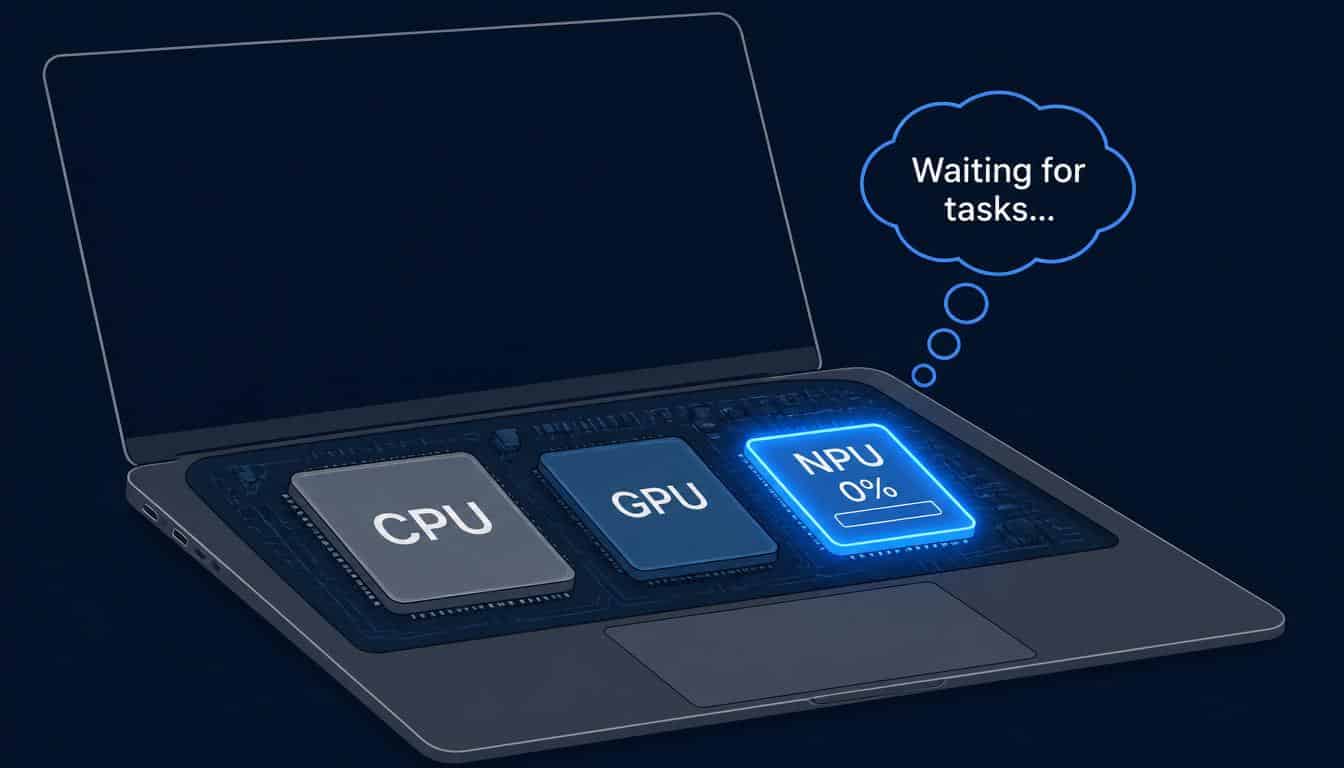
⚡ Quick Answer: To use your NPU on Windows 11, open Task Manager (Ctrl+Shift+Esc) → Performance tab → confirm NPU appears. Then install Foundry Local or enable Windows Studio Effects — both automatically route AI tasks to the NPU without any code changes. On macOS, Ollama and Core ML use the Apple Neural Engine automatically. No manual configuration is required on either platform for most tasks.
There is a dedicated AI processor sitting inside most laptops shipped in 2026, and the majority of them are running at 0% utilisation right now. The NPU — Neural Processing Unit — is purpose-built for the matrix operations that power AI inference. It consumes four to ten times less power than a GPU running equivalent workloads. It is present in every Qualcomm Snapdragon X, AMD Ryzen AI, Intel Core Ultra, and Apple Silicon device sold in the past two years.
The reason it sits idle is a software problem, not a hardware problem. The NPU only processes workloads when applications explicitly route tasks to it. Most applications still default to the CPU or GPU, because the developer tooling for NPU-targeted development matured slowly and the 40 TOPS threshold for Copilot+ PC certification only became meaningful to consumers in 2025.
That is changing in 2026. Windows Studio Effects, GitHub Copilot’s on-device mode, Foundry Local, and an expanding list of applications now target the NPU by default on supported hardware. This guide explains how to confirm your NPU is working, which applications actually use it, how to enable NPU acceleration manually where required, and how to build applications that target the NPU using Python.
Key Takeaways
- Most NPUs run at 0% utilisation — applications must explicitly support NPU to route workloads to it
- Windows 11 24H2 automatically routes supported AI tasks to the NPU through Windows ML
- Windows Studio Effects, Live Captions, and Cocreator in Paint are verified NPU-accelerated in July 2026
- Foundry Local exposes an OpenAI-compatible local endpoint that uses NPU acceleration automatically on Copilot+ PCs
- On macOS, Ollama and Core ML apps use the Apple Neural Engine automatically with no configuration
- 40 TOPS is the minimum for Copilot+ PC certification — Snapdragon X2 Elite now reaches 80–85 TOPS
What Is an NPU and Why Is Yours Probably Idle?
A Neural Processing Unit is a fixed-function accelerator built specifically for the multiply-accumulate operations that underpin neural network inference. Unlike a CPU — which handles diverse, sequential tasks — or a GPU — which processes large parallel workloads for rendering and compute — an NPU is designed for one job: executing the mathematical structures of deep learning models with high throughput at low power.
The practical consequence of that specialisation is significant. NPUs deliver efficient, low-latency inference directly on-device, minimising both network dependency and power consumption. Running a background blur model continuously on the NPU at 2–3 watts would drain the GPU at 25–40 watts for the same result. Battery life on Copilot+ laptops in productivity workflows extends meaningfully because AI features run on the NPU rather than competing with the CPU and GPU for power.
How NPU Differs From CPU and GPU
The CPU is the system’s general-purpose processor — it handles the operating system, application logic, file management, and any task requiring flexible, conditional decision-making. Its strength is versatility. The GPU contains thousands of parallel shader cores originally designed for rendering pixels simultaneously. Those same cores proved useful for AI training and inference because both workloads are highly parallel.
The NPU removes the hardware a CPU needs for general-purpose flexibility and the GPU needs for rendering, leaving only the units that matter for neural network execution: dedicated multiply-accumulate circuits, on-chip SRAM for model weight caching, and a memory interface optimised for high-bandwidth weight streaming. The result is a chip that performs AI inference at a fraction of the power consumption of either alternative.
Why Most NPUs Sit Idle in 2026
The NPU does not do much unless something actually needs it, so when you are not using built-in AI features or an app that targets the NPU, it is mostly just sitting there idle. This is by design. The NPU is a shared hardware resource managed by the operating system. Windows 11 routes workloads to it only when an application uses a compatible framework — Windows ML, ONNX Runtime with DirectML, or a vendor-specific SDK — and explicitly requests NPU execution.
Most applications do not yet do this. The developer ecosystem around NPU-targeted inference is newer than the GPU ecosystem by years, and many popular AI tools still default to CPU or GPU processing regardless of whether an NPU is present.
Step 1 — How to Check If Your PC Has an NPU and Whether It Is Working
Before enabling or building for NPU acceleration, confirm that your system exposes an NPU and that the drivers are correctly installed.
How to Check NPU Usage in Windows 11 Task Manager
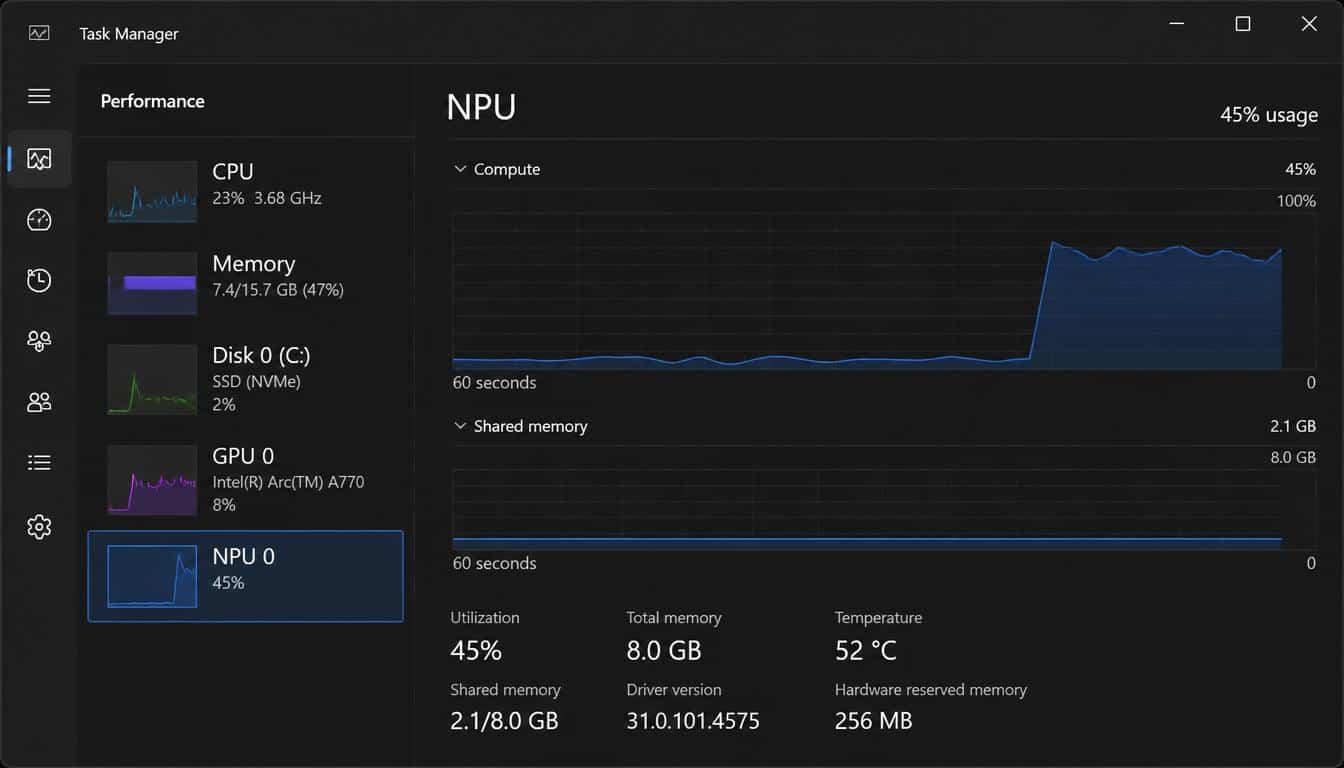
Open Task Manager by pressing Ctrl+Shift+Esc, click on Performance in the left pane, and look for a dedicated NPU section. If it appears, your system is ready. If not, your device may not support NPU hardware or the drivers may need updating.
Starting with Windows 11 build 26100.8524 (24H2), Microsoft updated Task Manager to include NPU, NPU Engine, NPU Dedicated Memory, and NPU Shared Memory columns in the Processes and Details views. This lets you see exactly which applications are consuming NPU resources and at what percentage of total capacity.
If the NPU does not appear in Task Manager, the most common cause is an outdated chipset driver. On AMD hardware, install chipset package version 6.07.22.037 or later from the AMD website — this release specifically enables NPU detection in Windows. On Intel Core Ultra hardware, install the Intel AI PC Developer Kit from the Intel developer portal. On Qualcomm Snapdragon devices, drivers are distributed through Windows Update.
How to Check NPU Usage on macOS
On macOS, the Apple Neural Engine does not appear as a discrete item in Activity Monitor by default. Instead, confirm Neural Engine activity by selecting Window → GPU History from the Activity Monitor menu bar. The Neural Engine appears as a separate graph labelled “NE” on Apple Silicon Macs running macOS Ventura or later.
How to Install NPU Drivers on Windows 11
AMD offers driver packages for Windows 10 and 11 64-bit that automatically detect and install updates for the Ryzen chipset and Radeon graphics. The installer identifies the hardware and applies each component — including the chipset version that enables NPU reading by Windows.
For Intel Core Ultra (Meteor Lake, Lunar Lake, Panther Lake), download the OpenVINO toolkit from the Intel developer portal, which bundles the AI Boost NPU driver alongside the inference engine. For Qualcomm Snapdragon X Elite and X2 Elite on Windows on Arm, drivers arrive through Windows Update — ensure you are on Windows 11 24H2 or later for full NPU scheduling support.
What Apps Actually Use the NPU in 2026?
The question developers ask most frequently is not how the NPU works but which applications currently route workloads to it. The answer in July 2026 is narrower than marketing suggests but broader than it was twelve months ago.
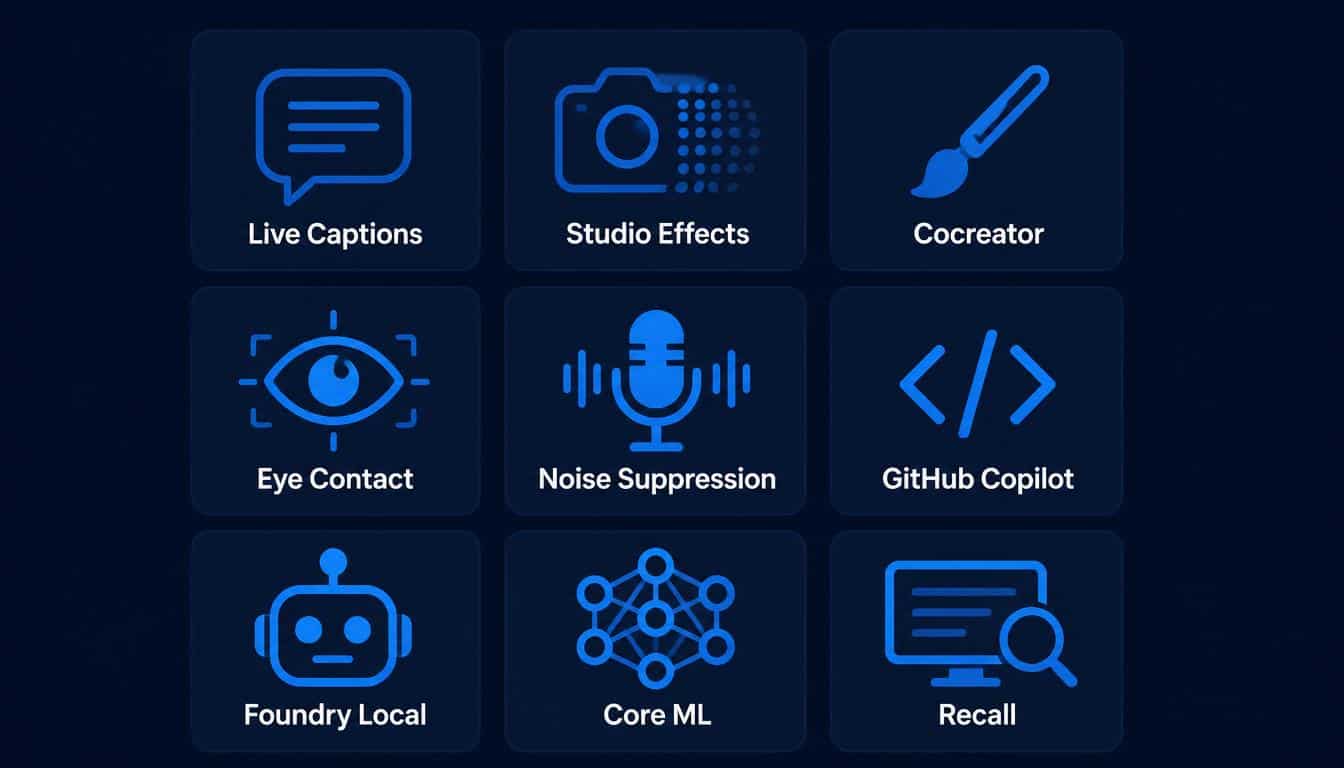
Verified NPU-Accelerated Applications
| Application | Platform | NPU Workload | Verification |
|---|---|---|---|
| Windows Studio Effects | Windows 11 | Background blur, noise suppression, eye contact | ✅ Microsoft official |
| Windows Live Captions | Windows 11 | Speech transcription and real-time translation | ✅ Microsoft official |
| Cocreator (Paint) | Windows 11 | AI image generation from text prompts | ✅ Microsoft official |
| Windows Recall | Windows 11 | Screen content indexing and semantic search | ✅ Copilot+ PC only |
| Zoom Studio Effects | Windows 11 | Background removal, noise suppression | ✅ Verified via Task Manager |
| Microsoft Teams | Windows/Mac | AI noise suppression, background effects | ✅ Verified |
| Foundry Local | Windows 11 | LLM inference (Phi-4-mini, Qwen 2.5) | ✅ Auto-routes on Copilot+ |
| Ollama | macOS | Metal backend via Neural Engine | ✅ Apple Silicon |
| Core ML apps | macOS | On-device inference | ✅ Apple Silicon |
| GitHub Copilot (on-device) | Windows/Mac | Code suggestion (local mode) | ✅ Copilot+ PC required |
Apps That Claim NPU Support but Route to GPU Instead
A common source of confusion is applications that advertise “AI acceleration” but route workloads to the GPU or CPU by default. Image editing tools, video encoders, and consumer AI utilities in this category use the GPU’s compute shaders or the CPU’s AVX-512 instructions rather than the NPU. Confirm actual NPU usage through Task Manager’s NPU column — if the NPU percentage remains at 0% while the application is actively processing AI tasks, it is not using the NPU.
For applications using ONNX Runtime, the execution provider selection determines which hardware receives the workload. Without explicitly requesting the NPU execution provider in the application’s ONNX configuration, inference defaults to CPU or GPU even on hardware that supports NPU execution.
How to Enable NPU Acceleration in Windows 11
Enable Windows Studio Effects — The Quickest NPU Verification
Windows Studio Effects provides the fastest way to confirm your NPU is active. Open the Quick Settings menu by clicking the Network or Volume icon in the taskbar, select the Studio Effects tile, and enable features such as Background Blur, Eye Contact, and Voice Focus. Open Task Manager immediately after enabling Studio Effects and check the NPU usage percentage — it should rise above 0%, confirming that the NPU is active and driver-ready.
If Studio Effects does not appear in Quick Settings, your device either does not meet the 40 TOPS Copilot+ PC minimum or requires a driver update. Verify your processor’s TOPS rating against the Copilot+ PC specification list on Microsoft’s website.
Run Local AI Models on NPU With Foundry Local
Foundry Local is Microsoft’s developer-focused runtime for on-device LLM inference, released in public preview in early 2026. If your device supports it and you are on Windows 11 24H2 or later, Foundry Local will automatically use NPU acceleration when available — no code changes required.
Install and run a model with three commands:
bash
pip install foundry-local-sdk
foundry model run phi-4-mini
Foundry Local serves an OpenAI-compatible endpoint on localhost. Any application that calls the OpenAI Python SDK can redirect to Foundry Local by changing the base URL — the NPU handles inference automatically on supported hardware without any additional configuration.
python
from openai import OpenAI

client = OpenAI(
    base_url="http://localhost:5273/v1",
    api_key="foundry-local"
)

response = client.chat.completions.create(
    model="phi-4-mini",
    messages=[{"role": "user", "content": "Explain what an NPU does."}]
)
print(response.choices[0].message.content)
For a broader comparison of local inference tools including Ollama and LM Studio alongside Foundry Local, the LM Studio vs Ollama comparison covers the setup and performance differences in detail.
How to Use NPU for Local LLM Inference in 2026
Can Your NPU Actually Run Local LLMs?
The honest answer is: yes, with meaningful constraints. For most Windows NPUs, the Qualcomm Snapdragon X2 Elite’s Hexagon NPU can run quantised 7B parameter models at usable speeds — something no other Windows NPU can claim as reliably. Intel Core Ultra and AMD Ryzen AI NPUs handle 1B–3B models reliably; larger models overflow available on-chip memory and fall back to CPU execution.
Apple Silicon behaves differently. The Neural Engine works alongside the CPU and GPU through the unified memory architecture, so Ollama on a MacBook uses the full chip rather than just the Neural Engine. The result is practical 7B inference at 30–50 tokens per second on an M4 MacBook Air — well above what any discrete Windows NPU achieves at 1B–3B scale.
NPU vs GPU for Local LLM — Real Performance Numbers
| Platform | NPU | LLM Speed | Practical Max Model |
|---|---|---|---|
| Qualcomm X2 Elite | Hexagon (80 TOPS) | 20–30 tok/s | 7B Q4 |
| AMD Ryzen AI 300 | XDNA2 (50 TOPS) | 15–20 tok/s | 3B Q4 |
| Intel Core Ultra 200V | AI Boost (48 TOPS) | 10–15 tok/s | 1B–3B Q4 |
| Apple M5 | Neural Engine (38 TOPS) | 30–50 tok/s* | 7B+ (unified) |
| NVIDIA RTX 4060 | GPU (not NPU) | 50–70 tok/s | 8B Q4 |
*Apple Silicon figure includes CPU and GPU contribution through unified memory — not Neural Engine alone.
The NPU’s advantage over a discrete GPU for LLM inference is not speed. It is power efficiency. Running a 3B model on the NPU at 10–15 tokens per second uses approximately 5–8 watts. Running the same model on a discrete GPU uses 40–80 watts. For always-on local AI assistants in developer workflows, the NPU’s efficiency advantage makes it the appropriate hardware for continuous inference — the GPU remains the better choice for batch processing and larger models.
For a detailed comparison of how NPU and GPU hardware handle inference at the architectural level, the NPU vs GPU local AI hardware guide covers the memory bandwidth and workload distribution differences in depth.
How to Develop NPU Applications in 2026
Windows ML — Microsoft’s Recommended NPU API
The recommended way to run AI tasks on the device NPU is to use Windows ML. The recommended way to programmatically access the NPU for AI acceleration has shifted from DirectML to Windows ML (WinML), reflecting a broader effort to simplify and optimise the developer experience for AI workloads on Windows devices.
Windows ML automatically detects available hardware accelerators and selects the most appropriate execution provider — QNN for Qualcomm NPUs, OpenVINO for Intel, VitisAI for AMD — without requiring developers to write device-specific code. If the preferred execution provider fails or is unavailable, Windows ML falls back to GPU or CPU automatically.
ONNX Runtime — Cross-Platform NPU Access
ONNX Runtime with DirectML provides broader platform compatibility than Windows ML for developers targeting multiple hardware configurations. Models trained in PyTorch, TensorFlow, or scikit-learn convert to ONNX format and run through the same execution provider abstraction layer.
python
import onnxruntime as ort

# Request NPU execution provider
session = ort.InferenceSession(
    "model.onnx",
    providers=["DmlExecutionProvider"]  # routes to NPU on supported hardware
)
Vendor-Specific SDKs
For maximum performance on specific hardware, vendor SDKs expose optimisations that the generic Windows ML layer does not:
- Intel OpenVINO — optimised for Intel AI Boost NPU, supports computer vision and LLM workloads with INT8 quantisation
- AMD Ryzen AI SDK — provides VitisAI execution provider for XDNA-based NPUs, includes pre-optimised model zoo
- Qualcomm AI Stack (QNN) — specifically for Snapdragon Windows on Arm, highest TOPS utilisation for mobile-first AI models
For a practical example of building a Python application that runs locally on the NPU, the AMD developer documentation on Windows ML deployment covers the complete setup from model conversion to inference execution.
NPU vs GPU vs CPU — When to Use Which Hardware
Not every AI task belongs on the NPU. To truly master NPU usage, you must understand workload distribution. Use the GPU for massive, one-time parallel tasks like generating a high-resolution image; use the NPU for sustained, low-latency inference that runs continuously.
| Task | Best Hardware | Reason |
|---|---|---|
| Live captions and transcription | NPU | Low power, always-on |
| Background blur in video calls | NPU | Continuous, real-time |
| 7B+ LLM inference | GPU or unified memory | VRAM and bandwidth |
| Image generation (Stable Diffusion) | GPU | Parallel compute |
| Code completion (on-device, 1B–3B) | NPU | Efficiency for short bursts |
| Voice transcription (offline) | NPU | Battery-friendly |
| Model training or fine-tuning | GPU | CUDA ecosystem required |
| Batch document processing | GPU | Throughput priority |
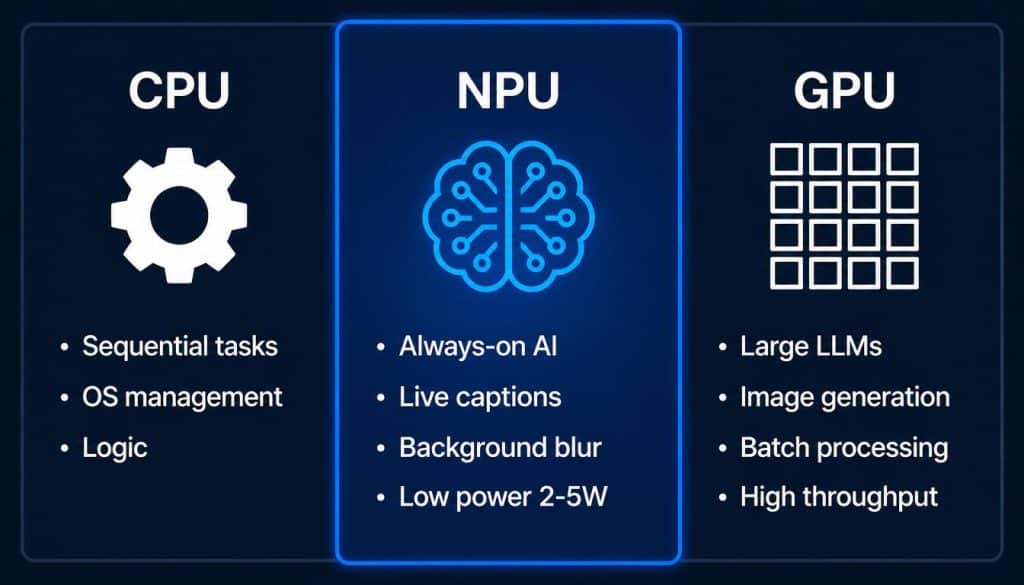
The practical rule: sustained, low-power AI features belong on the NPU. High-throughput or large-model inference belongs on the GPU. On Apple Silicon, the unified memory architecture removes most of this distinction — the chip allocates workloads across CPU, GPU, and Neural Engine automatically based on load.
For context on how different local AI hardware performs across these workload categories, the best local LLM hardware guide 2026 maps GPU, NPU, and unified memory platforms against specific model sizes and use cases.
Common NPU Problems and How to Fix Them
NPU not showing in Task Manager Install the latest chipset driver from your processor manufacturer’s website, not through Windows Update. Reboot after installation. If the NPU still does not appear, verify the Windows 11 build — NPU visibility in Task Manager requires build 26100.8524 (24H2) or later.
NPU shows 0% usage even when running AI apps The application is not routing workloads to the NPU. Check whether the app explicitly supports Windows ML, DirectML, or a vendor NPU SDK. Open the app’s settings and look for hardware acceleration options. If none exist, the application uses CPU or GPU regardless of NPU availability.
High CPU usage instead of NPU during AI tasks This is the most common issue after driver installation. The application may be using a version of ONNX Runtime that does not include the DirectML execution provider, or it may be falling back to CPU because the model has operations the NPU does not support (dynamic shapes are a common limitation). Update the application and verify it ships with DirectML support in its ONNX Runtime package.
AMD NPU Error 43 in Device Manager This error appears on some Ryzen 7 8845HS and Ryzen AI 300 systems after chipset installation. Install AMD Software: Adrenalin Edition after the chipset package, then verify TPM 2.0 and Secure Boot are both enabled in BIOS. Reboot and check Device Manager again. If the error persists, download the standalone NPU driver from AMD’s developer portal rather than relying on the chipset package to include it.
Frequently Asked Questions
How do I know if my PC is using the NPU?
Open Task Manager (Ctrl+Shift+Esc) → Performance tab → look for the NPU section. Enable Windows Studio Effects (background blur or noise suppression) and watch whether the NPU percentage increases. If it rises above 0%, the NPU is active and driver-ready. If it stays at 0% with Studio Effects running, update your chipset driver.
What apps use the NPU on Windows 11 in 2026?
Verified NPU-accelerated apps include Windows Studio Effects (background blur, eye contact, noise suppression), Windows Live Captions (transcription and translation), Cocreator in Paint (AI image generation), Windows Recall, Zoom Studio Effects, Microsoft Teams AI features, and Foundry Local for on-device LLM inference. Third-party apps built with Windows ML or ONNX Runtime with DirectML can also route workloads to the NPU when developers explicitly configure it.
Can I run a local LLM on my NPU?
Yes, with limitations based on model size. Qualcomm Snapdragon X2 Elite handles 7B models at 20–30 tokens per second through Foundry Local. Intel and AMD NPUs handle 1B–3B models reliably. On macOS, Ollama uses the Apple Neural Engine alongside CPU and GPU through unified memory, enabling 7B inference at 30–50 tokens per second. For larger models, a discrete GPU remains necessary.
Does macOS use the NPU automatically?
Yes. Ollama detects the Apple Neural Engine through the Metal backend and uses it automatically with no configuration. Core ML apps access the Neural Engine through the framework API without requiring any developer setup for end users. The Apple Silicon unified memory architecture means the CPU, GPU, and Neural Engine all share the same memory pool, so workload distribution is handled at the system level.
Why is my NPU at 0% when I use an AI feature in an app?
The application is routing the workload to the CPU or GPU instead of the NPU. This happens when the app uses an older AI framework that predates NPU support, when the model architecture contains operations the NPU cannot execute (such as dynamic shapes), or when the developer did not explicitly configure the NPU execution provider. Check for app updates and verify in Task Manager that the GPU or CPU shows elevated usage instead — that confirms which processor is handling the workload.
What to Do Next
Understanding how to use NPU acceleration is the first step. Three practical directions from here:
Check NPU vs GPU performance on your specific workload: The NPU vs GPU local AI hardware comparison covers which architecture handles each inference workload category more efficiently — a useful reference before deciding whether an NPU-equipped laptop or a discrete GPU system better suits a particular developer workflow.
Run a local LLM on your machine today: The complete guide to running a local LLM on low-end hardware covers Ollama setup on 8GB RAM machines including those with NPU-equipped processors — the configuration steps work the same way whether the hardware routes inference through the NPU or not.
Understand what hardware to buy for AI inference: The local LLM hardware guide 2026 covers GPU, NPU laptop, and unified memory platform trade-offs across five budget brackets — useful context if you are evaluating whether an NPU laptop or a discrete GPU machine better serves a production inference workflow.
Conclusion
The NPU inside modern laptops and desktops is a capable, power-efficient processor that most machines underutilise in 2026. The gap between hardware capability and software utilisation is closing rapidly — Windows ML, Foundry Local, and an expanding application ecosystem now make NPU-targeted inference accessible without deep hardware expertise.
Three things determine whether your NPU actually processes work. First: the driver must be installed and visible in Task Manager. Second: the application must use a compatible framework — Windows ML, ONNX Runtime with DirectML, or a vendor SDK. Third: the model and workload must fit the NPU’s execution capabilities — tasks with dynamic shapes or large model sizes fall back to CPU or GPU regardless.
For developers, Foundry Local provides the lowest-friction path to NPU-accelerated applications in 2026. Install the SDK, point your OpenAI-compatible application code at localhost, and the NPU handles inference automatically on Copilot+ PC hardware. For users, enabling Windows Studio Effects takes thirty seconds and confirms immediately whether the NPU is functional. Everything else follows from there.

Hammad Ahmed is a technology blogger and Computer Engineering student who writes about AI, software, hardware, cybersecurity, and emerging technologies. At TechInfort, he focuses on delivering clear, practical, and research-driven content that helps readers stay informed about the latest developments in the tech industry.